What MCP is
MCP (Model Context Protocol) is a standard way for an AI assistant to use outside tools, such as Skald.
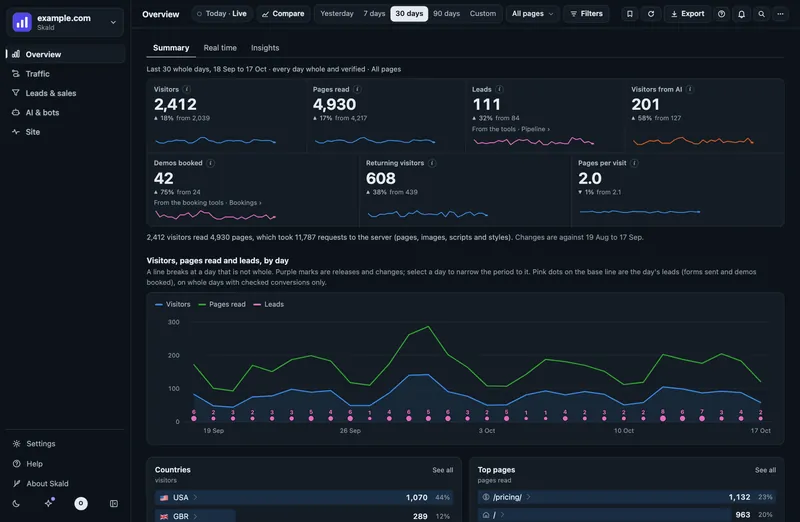
Once connected, you can ask "How did last week compare with the week before?" and the assistant reads the answer from Skald. It does not guess.
Before you start
You need three things:
- MCP switched on for your server. Whoever runs your Skald server turns it on. If it is off, the address below answers "MCP is not switched on here".
- Team accounts. MCP works only on servers where people sign in with their own accounts. It is not available on servers with one shared login.
- A token for the assistant (the MCP scope). Only an owner or admin can make one.
The quickest way is the card Connect an AI assistant (MCP) in Connections. Its Set up button makes the token, shows what to paste where, and tests it. This guide has each step in full.
The address to use
The MCP address is your dashboard's address, followed by /traffic-mcp:
https://analytics.example.com/traffic-mcpCopy yours from Settings > Team & access > Connections > Connect an AI assistant (MCP), step Connect. That step has the Claude Code command and the Claude Desktop config too, with your token filled in.
The address is the same for every site on your server. The token decides which sites the assistant may read.
Make a token for the assistant
- Open Connections and press Set up on Connect an AI assistant (MCP).
- Keep the Name it suggests, or type one, for example "Claude".
- Press Make the token and copy the token. It is shown only once.
- Press Next for the address and the set-up of each assistant, then Next again to Test it.
That token reads the site you are on, and sees no visitor addresses. For an assistant that reads several sites, open Make a token by hand under Your tokens: tick the Sites, and AI assistant (MCP) under What it may do.
Tick Reading visitor addresses there only if you truly need it. With it, the assistant can see visitor addresses in today's AI activity and look a person up (find_person: their visits, emails and names).
The token looks like skald_<id>_<secret>. In every step below, put your own token where you see skald_<id>_<secret>.
See Connections and The read-only API for more on tokens.
Connect Claude Code
Run this one command in your terminal:
claude mcp add --transport http skald https://analytics.example.com/traffic-mcp \
  --header "Authorization: Bearer skald_<id>_<secret>"
Then start Claude Code and type /mcp to see that skald is connected.
Connect Claude Desktop
Claude Desktop needs a small helper to send the token, because Skald does not offer a sign-in screen (OAuth) yet. The common helper is mcp-remote, which needs Node.js on your computer.
- In Claude Desktop, open Settings > Developer and press Edit Config. This opens
claude_desktop_config.json. - Add Skald to it as below, with your own address and token.
- Save the file and restart Claude Desktop.
- Start a new chat and check that the Skald tools are listed.
{
  "mcpServers": {
    "skald": {
      "command": "npx",
      "args": ["mcp-remote", "https://analytics.example.com/traffic-mcp",
               "--header", "Authorization:${SKALD_AUTH}"],
      "env": {"SKALD_AUTH": "Bearer skald_<id>_<secret>"}
    }
  }
}
Claude's Connectors screen (Add custom connector) asks for a URL and, at most, OAuth details. It has no place for a token, so it cannot connect to Skald yet. Use the config file instead.
If you run the Skald server yourself, you can also connect over SSH without a token. The server docs explain how.
Connect ChatGPT
Skald does not offer OAuth sign-in yet. ChatGPT can only use Skald where it lets you set the Authorization header yourself.
- ChatGPT app (connectors, developer mode): these screens ask for OAuth or no sign-in. They cannot send the token, so they cannot connect to Skald yet.
- OpenAI API: a developer can add Skald as a remote MCP server, with the server URL
https://analytics.example.com/traffic-mcpand the headerAuthorization: Bearer skald_<id>_<secret>.
Other MCP clients
Any MCP client works if it can do both of these:
- connect to a remote server over HTTP (often called "Streamable HTTP");
- send a custom header with every request.
Use the address above and the header Authorization: Bearer skald_<id>_<secret>. Skald answers each request with plain JSON and does not keep an event stream open.
The tools it offers
The assistant chooses these tools itself. Dates are in your site's own time zone. With no dates, a tool uses the last 7 whole days: yesterday and the 6 days before it.
| Tool | What it answers |
|---|---|
list_sites | The sites you may read, their views, and the days held |
overview | Visits, pages read, AI fetches, search fetches, 404s, server errors, and the change against the period before |
breakdown | Visits by country, source, campaign, landing page, device, browser, hour, operating system or referrer |
top_pages | The pages people read most, with AI fetches of each |
ai_activity | Which AI assistants and crawlers came, what they fetched, and visits that followed an assistant's link |
leads | Leads from the website's forms, by type and by first source (totals only) |
funnel | A saved funnel, or steps you name, over the last 7 days and today |
compare | Two date ranges side by side, up to 400 days |
page_story | One page since it was published: first Googlebot, first AI crawler, first person, first lead |
live_today | Today so far, from the 2-minute snapshot (partial, never compared) |
data_quality | Per day: whether the log was read whole and passed its checks |
site_health | Open alerts, heartbeat uptime, errors today, late runs, page speed |
conversions | Demos, forms, sign-ups and payments by stage: started, completed, abandoned, won, lost. The completed ones and the leads, by source, first touch, landing page, country, campaign, device or tool |
find_person | One person by IP address, email, visitor ID or lead: their visits, leads and conversions. Only with Reading visitor addresses; each search goes to the audit log |
It also offers a ready prompt, weekly_report, which asks the assistant for a short weekly report.
Questions to try
- "Which sites can you see in Skald?"
- "How did last week compare with the week before?"
- "Where did our visits come from in the last 30 days?"
- "Which pages did ChatGPT fetch yesterday?"
- "What are our ten most-read pages this month?"
- "Was any day withheld last week, and why?"
- "How is the pricing page doing since it was published?"
- "How many demos were booked last month, and from which sources?"
- "Is the site healthy right now?"
- "Write a short weekly report for example.com."
How honest the answers are
Skald gives the assistant the same rules the dashboard follows:
- Visits are called "visits (an upper bound on people)". A visit count is at most the number of people, never a count of them.
- Totals use whole, checked days only. Withheld, partial and missing days are named by date and left out. They are never counted as zero.
- A figure that was not recorded is null, never 0.
- A change against an earlier period is given only when both periods are whole.
If the assistant says a day was withheld, that day failed a check. See FAQ for what that means.
Safety
- Read-only. Every tool only reads. The assistant cannot change settings, delete data, or add anything.
- Only your sites. The token reads only your organisation's sites, and only the ones you ticked. Every tool checks this again on each call.
- No addresses by default. Without Reading visitor addresses, no answer carries a visitor's address, and the assistant cannot look a person up.
- Turn it off at once. To cut off an assistant, revoke its token: open Settings > Team & access > Connections, find it under Your tokens, press Revoke, then Yes, revoke. It stops working immediately.
- Tied to the maker. If the person who made the token leaves the team or stops being an admin, the token stops too.
- Keep the token secret. It sits in your assistant's settings. Do not paste it into a chat or a shared file.
If it does not connect
First press Test in the dialog's last step. It says in words what is wrong. Every answer is in If a connection does not work.
| What you see | What to check |
|---|---|
| "MCP is not switched on here" | Ask whoever runs your server to switch MCP on |
| 401, "Unauthorized" | The token is wrong, revoked, or has no MCP scope. Make a new one with Connect an AI assistant (MCP) |
| "this token is not for that site" | Make the token from that site's page, or tick that site in Make a token by hand |
| 403, "this Origin may not call the MCP server" | You are calling from a web page. Use an assistant app or command line instead |
| 405 | The client tried to open an event stream. Pick the HTTP (Streamable HTTP) transport |
Related guides
- Connections: the page, its dialogs and Your tokens.
- The read-only API: tokens and scopes in full.
- Sign-in and team: who is an admin.
- Privacy: what holds visitor addresses.