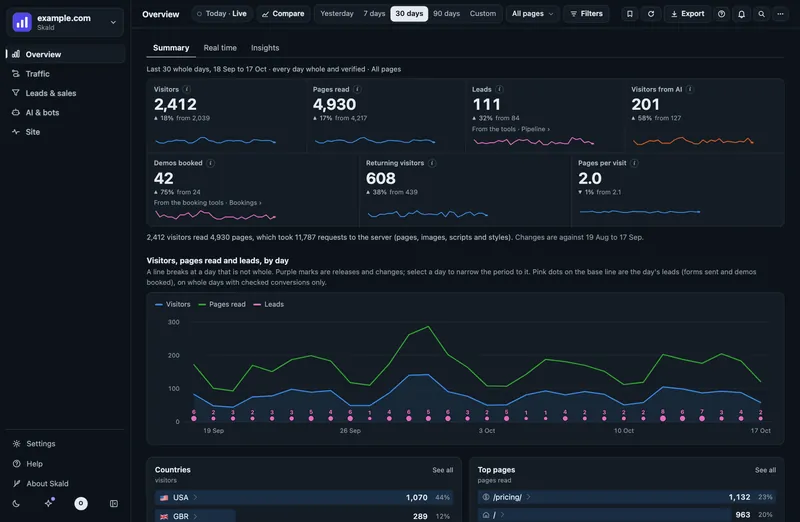
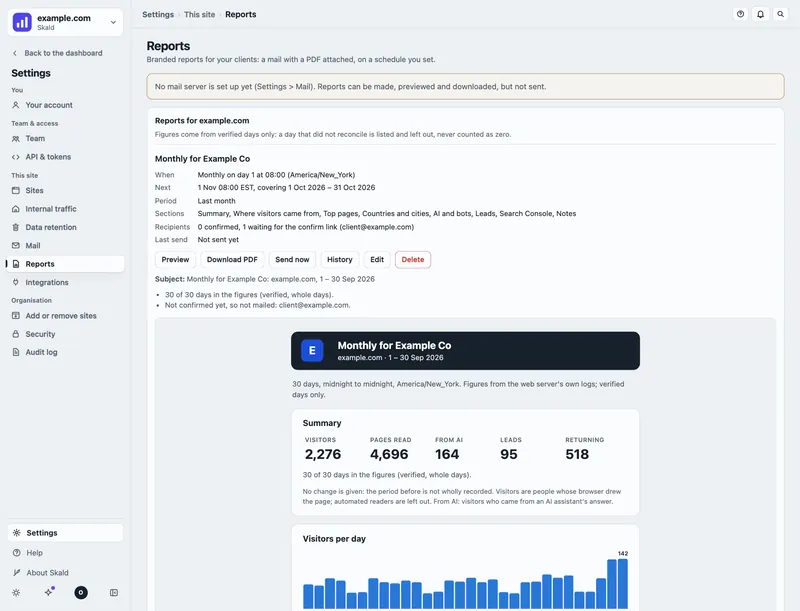
Where to find it
- Overview, under What changed: the card From your tools, one line per tool you connected, with its key figures, the tool's own period and when it last answered. With no tool connected it is one folded line.
- Settings › This site › Leads & tools: each tool you connected is a row with its state and its last answer. Open the row for its details: where its key is kept, its settings, Sync now, Pause and Remove the key. In the address:
tool=your-<tool>, such astool=your-ga4.
Only owners and admins of the site connect or change a tool. Anyone on the site sees the figures on Overview.
Connect a tool
On Settings › This site › Leads & tools, choose Connect a tool. It asks Who will do it?
- Me: choose the tool, read what key it needs and which permission, paste the key, and choose Next. Skald checks the key's shape, keeps it on its server and never shows it again.
- My developer: a message to send them, with which key to make, the permission it needs, and where to paste it in Skald. It never asks for a key by mail.
- My AI agent: Skald writes one line for your agent (Claude Code, Codex, Cursor...). The agent looks in your site's project for the names of keys it may already have (a
.envfile's names, never their values), lists what it found, and asks you before it sends each key. It sends a key to Skald from a file or the environment, never typed into the chat, and never prints it. Only a line made by the person who runs your Skald server (an install admin) may hand Skald a key.
The same lines are in Settings › To do (one optional line per tool) and in Finish set-up and Set up everything left.
Skald asks the tool within a few minutes, then every 6 hours, at a lower priority than its own work.
Google Analytics
Skald reads your Google Analytics 4 property, read-only, every 6 hours:
- Sessions, Users, Engaged sessions and Key events over the property's own last 28 whole days, in the property's own time zone.
- The top 10 landing pages and the top 10 sources (source / medium), with their sessions and key events.
- What Google said about its answer: Thresholded (Google hid some small numbers), Sampled (Google counted part of the data), or rows folded into "(other)". Skald shows it beside the figures.
Users are Google's own total for the 28 days. Skald never adds up users across days or rows.
What it needs:
- The property ID: the digits in Google Analytics, Admin › Property details › Property ID. Not the
G-measurement ID of your tag. When Skald's site check read your home page and saw aG-tag, it shows it, so you know which stream your site sends to. - A key, one of:
- Skald's Search Console key, when Search Console is connected already: leave the key empty. Nothing new to make.
- A Google service-account key file (JSON): in Google Cloud console, IAM & Admin › Service accounts › Create, then Keys › Add key › JSON. Turn on the Google Analytics Data API in that project (APIs & Services › Library).
- An OAuth sign-in file (
"type": "authorized_user"), asgcloud auth application-default login --scopes=https://www.googleapis.com/auth/analytics.readonlywrites it, for someone who cannot make a service account.
- The one click: in Google Analytics, Admin › Property access management, add the robot address Skald shows (the service account's) with the role Viewer. Viewer can only read.
If it fails, the drawer says why in plain words: no access (add the robot as a Viewer), no such property (use the digits), a key deleted in Google Cloud (paste a new one), or Google's quota used up for now (the next sync tries again).
Vercel Web Analytics
For a site on Vercel with Web Analytics on. Skald reads, every 6 hours, Vercel's own visitors and page views over the last 28 whole days (UTC, production only), and its top 10 pages, referrers and countries. The rest stay in Vercel's own Others row; a visit with no referrer shows as (none).
Skald's own count of the same site comes from Vercel's log drain (your server log, as for every other site). This is Vercel's own visitor count, shown apart and never added in.
What it needs: the project ID (Vercel, the project's Settings › General), the team ID when the project belongs to a team (team_..., the team's Settings › General), and a Vercel access token (Account Settings › Tokens › Create). Vercel tokens cannot be read-only: make one scoped to the project's team only, with an expiry, and paste it nowhere else. If Vercel refuses (an expired token, no such project, Web Analytics not on the plan), the drawer says which.
Calendly
Calendly's own history, apart from the bookings its webhook already sends Skald as leads. Every 6 hours Skald reads the meetings from 90 days back to 60 days ahead: bookings, upcoming, past, canceled, no-shows, booked in the last 7 days and the 7 days before, and the bookings of each event type.
It never makes a lead, and never changes or doubles one: leads still come only from the webhook (Settings › Leads & tools › Calendly). The drawer says how many of these bookings the webhook also sent Skald and how many it did not, matched on the meeting.
What it needs: a personal access token (Calendly, Integrations & apps › API and webhooks › Personal access tokens). When Calendly offers scopes, tick only users:read and scheduled_events:read. Option: your own bookings (the default) or your whole organisation's.
Resend
Resend's own figures: contacts, subscribed and unsubscribed, each segment's contacts (Resend's audiences are now called segments), and the delivery state of the newest 100 emails (delivered, opened, bounced and so on).
What it needs: a Resend API key with Full access (Resend, API Keys). Resend's keys are full access or sending only, and a sending-only key cannot read, so Skald says so and cannot use it. Make a key for Skald alone, so you can remove it without touching the key your site sends with.
Names and emails
Calendly's invitees and Resend's contacts and recipients have names and emails. Skald keeps them only as your site keeps a lead's (Settings › This site › Privacy): none when the site keeps no names, none older than the People days. Once a day Skald also removes the names and emails that have grown older than the People days from what it stored, even for a tool that stopped answering; the figures stay. A site that keeps everything (internal or enterprise) keeps them. It keeps at most the 10 newest, and only the fields it reads: never the answers to booking questions, phone numbers or email subjects. Owners and admins see them in the tool's drawer, each with a copy icon. Others on the site never see them.
Alerts and the Monday mail
On Settings › This site › Alerts, the fold Marketing has four alerts, mailed like every alert, once while they stay open:
- A tool stopped answering: no good answer from one of your tools for 26 hours.
- Leads dropped: the last 7 whole days' leads under half of the 7 days before, when those were 5 or more. The same leads as the dashboard.
- Bookings dropped: the same on Calendly's own bookings, when Calendly is connected.
- Google Analytics and the log far apart (off until you turn it on): Google Analytics' sessions and the log's visits over the same 28 days are 2 to 1 or more apart. They count in different ways, so neither is wrong; a gap that large usually means a missing tag on some pages, a consent banner, or a host the log does not see.
On Settings › This site › Mail & reports, Monday marketing mail (off until you turn it on) sends last week's visits, leads and top sources from the log, then each connected tool's own figures, each under its tool's name, to the site's mail recipients every Monday.
What each state means
| State | What it means |
|---|---|
| Not connected | Skald has no key for this tool on this site. |
| Paused | You paused it. The key and the figures kept stay; Skald does not ask. |
| Needs its key | It is on, but its key is missing, or Skald's secrets file is not private. |
| Waiting for its first answer | Connected; Skald has not asked yet, or the first answer is on its way. |
| Answering | The last answer came and every figure in it was checked. |
| Last try failed | The last try failed (a key removed, a permission missing, the tool down). The figures from the last good answer stay. One mail tells the site's recipients; the next one comes only after it answered again and failed again. |
| Stopped answering | No good answer for more than a day. |
| Withheld | Skald's own recheck of the stored answer did not match a figure. Nothing from this tool is shown until it does. |
How Skald checks every figure
Each answer a tool gives is kept as it came, with a fingerprint. Every figure Skald shows records where in that answer it was read. After each sync, a second, separate check (ti.py tools audit, the file yourtools/recount.py) reads every shown figure again from the stored answer on its own and compares them. A figure that does not match, or an answer changed since it came, withholds that tool's figures.
A figure the tool did not give shows Not given, never 0.
Why the tool's figures differ from Skald's
They count different things. Skald counts what reached your server, robots taken out, and calls those visits an upper bound on people. Google Analytics counts browsers that ran its script and accepted its cookie, and may sample or hide small numbers (it says so, and Skald shows what it said). Each tool also counts over its own days, in its own time zone. Neither is wrong; that is why they are never added together.
On the server
ti.py --site example.com tools status          # each tool's state, where its key is kept (never the key)
ti.py --site example.com tools sync            # ask every tool that is on, now
ti.py --site example.com tools audit           # recheck every figure against the stored answers
ti.py --site example.com tools connect <tool> --option <name>=<value> --key-stdin < key-file
ti.py --site example.com tools pause <tool>
A key can also live in the server's environment: name the variable in the config under your_tools (see docs/TOOLS.md). Then only whoever runs the server can change it.