How it works
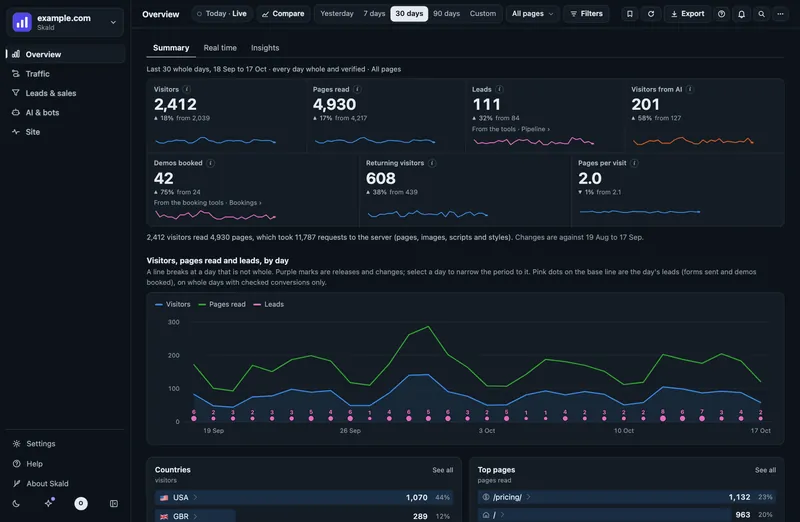
Each tool gets its own address in Skald and its own secret. When something happens (a booking, a payment, a form), the tool sends a signed message to that address. Skald checks the signature, records the conversion once, and lists it on Leads & sales > Leads, counts it on Summary (with Count from: Tools) and, for a booking or a payment, on Calendar bookings.
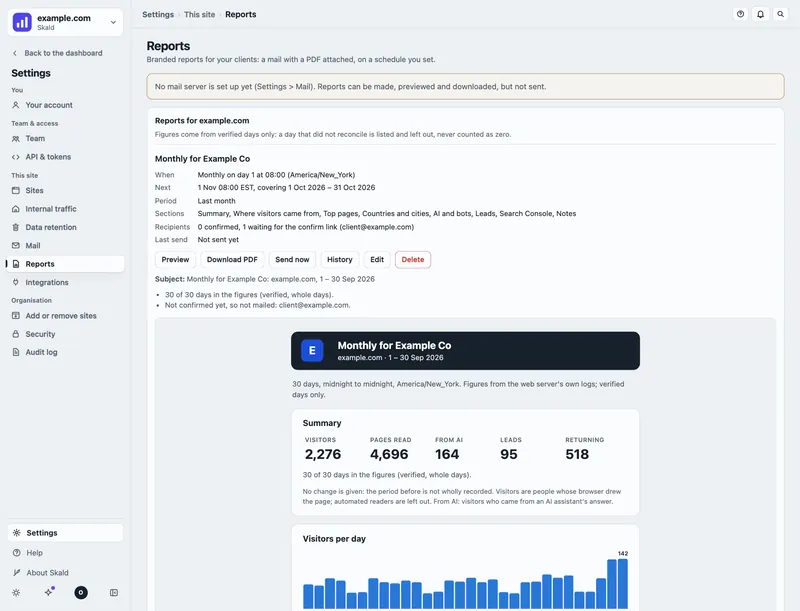
All of this is set up on one page: Settings > This site > Integrations, or Integrations.
- You need to be an admin or owner of the site's organisation. Viewers do not see this page.
- The page needs a server with accounts. Without it, the page says so, and the person who runs your Skald server sets up hooks on the server instead.
- If you manage more than one site, choose the site at the top first.
The Integrations page
At the top, Status lists each road into Skald for this site, with OK, Needs attention (and what to do) or Off: the hook receiver, the script tag, each hook that is set up, one lead sent by two tools, and the lead database. The server's doctor command (traffic-intel doctor; Docker: docker exec skald traffic-intel doctor) shows the same lines, and checks the rest of the install too.
Under Incoming hooks, each tool has a box with:
- Its address, with a copy button. It looks like
https://analytics.example.com/traffic-hooks/example.com/calendly. Always copy yours from the page. - A badge: no secret, secret set, or set (environment ...) when the secret is kept on the server.
- Its state in words: needs a secret, never received (set up, but nothing has come, not even a test), ready (a test passed, nothing real yet), or last received 2 h ago. When the last message was refused, it says why and what to do.
- Make secret (or Rotate secret once there is one), for the tools that take a secret Skald makes.
- Paste the signing secret from ..., for the tools that make their own secret (Stripe, HubSpot). Calendly, Cal.com and Typeform have both: use either one.
- Send a test event.
- Remove, once the hook has a secret.
- Last deliveries: the last 50 messages, with when, the answer, the outcome and any detail.
A hook does nothing until it has a secret. Without one, its address answers "not found".
The secret
Who makes the secret depends on the tool:
| Tool | The secret |
|---|---|
| Your site's server (lead), Zapier, Make, n8n (json) | Skald makes it: Make secret |
| Calendly, Cal.com, Typeform | Either one: Make secret and give it to the tool, or paste the tool's own |
| Stripe, HubSpot | The tool makes it: Paste the signing secret from ... |
To make a secret in Skald:
- Press Make secret.
- The secret is shown once, with the address. Copy both.
- Paste the secret into the other tool (each section below says where).
- Press I have copied it. The secret is not shown again.
To paste a tool's own secret:
- Copy the signing secret in the other tool (each section below says where).
- In that tool's box in Skald, paste it into Paste the signing secret from ....
- Press Save secret. The box says secret set. Skald never shows the secret again, not even to you.
To replace a pasted secret, paste the new one and save again.
Treat a secret like a password. Never put it in an email, a chat, a ticket or a shared document. Anyone with it can send fake conversions. If one leaks, press Rotate secret (or make a new secret in the tool and paste it): the old one stops working at once, and you give the new one to the tool.
If the box says set (environment ...), the secret is kept on the server. It cannot be made, pasted or removed on this page: ask the person who runs your Skald server.
The test button
Send a test event sends a signed sample to Skald's own receiver for that tool. It checks the signature and reads the sample, then keeps nothing and counts nothing. The page says "the test was signed, received and read", and what a real message would keep: the action, its stage, the source, country and device, and whether the visitor ID is kept. With visitor IDs off for the site, the visitor ID is dropped, as it is for a real message. The test shows as "test, read and not kept" in Last deliveries.
The server has the same test: traffic-intel hooks test example.com lead.
The test checks Skald's side only. To check the other tool, use its own "send test" button, if it has one, and look at Last deliveries.
Calendly
Calendly sends webhooks on its paid plans (Standard or higher). It has no screen for them: they are made through Calendly's API, usually by a developer.
- In Skald, open the Calendly box, press Make secret, and copy the address and the secret.
- Make a webhook subscription in Calendly with that address. Use the secret as the subscription's signing key.
- Choose these events:
invitee.created,invitee.canceled,invitee_no_show.created.
If your subscription already has a signing key from Calendly, paste that key into Paste the signing secret from Calendly instead of making one.
A developer can make the subscription with one request:
curl -X POST https://api.calendly.com/webhook_subscriptions \
  -H "Authorization: Bearer <your-calendly-token>" \
  -H "Content-Type: application/json" \
  -d '{"url": "https://analytics.example.com/traffic-hooks/example.com/calendly",
       "events": ["invitee.created", "invitee.canceled", "invitee_no_show.created"],
       "organization": "https://api.calendly.com/organizations/<your-organization-id>",
       "scope": "organization", "signing_key": "<your-secret>"}'
What Skald records: a booking (Demos, completed), a cancellation (cancelled, or rescheduled when Calendly says so) and a no-show. To join a booking to the visitor's journey, the tracking script adds the visitor ID to Calendly links as utm_content. See The tracking script.
Only some event types
One Calendly account often books for several businesses, and a Calendly webhook cannot be limited to some event types. So tell Skald which are this site's:
- In the Calendly box, find Only these Calendly event types.
- Enter one per line: the event type's address from Calendly's API (
https://api.calendly.com/event_types/...), or the booking page's name at the end of its link (product-demoinhttps://calendly.com/you/product-demo). - Press Save event types.
Any other event type is answered "OK" and left out: nothing is kept, and Last deliveries shows "not a conversion" with the event type it named, so you can copy it. A no-show is kept when its booking was kept. Leave the box empty to keep every event. Calendly does not send the booking page's name, so Skald compares it with the event type's name ("Product demo" is product-demo). If you rename the event type, use its address instead. See Demo bookings.
Cal.com
- In Skald, open the Cal.com box, press Make secret, and copy the address and the secret.
- In Cal.com, go to Settings > Developer > Webhooks > New.
- Subscriber URL: paste the address.
- Event triggers: Booking Created, Booking Cancelled, Booking Rescheduled.
- Secret: paste the secret. Save.
If the Cal.com webhook already has a secret of its own, paste it into Paste the signing secret from Cal.com in Skald instead.
To join a booking to the journey, pass the visitor ID in the embed as metadata[skv], or add a hidden booking question named skv.
To keep only some event types, enter their ids (1234) or names (30min) in Only these Cal.com event types, as for Calendly above.
HubSpot
HubSpot signs its messages with your HubSpot app's client secret. Skald cannot make one for it.
- In your HubSpot app, open Auth and copy the Client secret.
- In Skald's HubSpot box, paste it into Paste the signing secret from HubSpot and press Save secret.
- In your HubSpot app, open Webhooks and set the Target URL to the address from the HubSpot box.
- Subscribe to
contact.creation(counted as a Contact form), toobject.creationfor meetings (counted as a Demo), and todeal.propertyChangefordealstage(a deal moved to closed won counts as a won Deal).
You can also use a HubSpot workflow's Send a webhook action, signed by the same app. Skald counts it as a Contact form. To count it as something else, add a property skald_action, for example demo in a "meeting booked" workflow. Skald reads the properties skv (the visitor ID) and utm_*.
If your HubSpot account cannot sign a workflow webhook, send it through Zapier or Make instead (below).
Typeform
- In Skald, open the Typeform box, press Make secret, and copy the address and the secret.
- In Typeform, open your form, then Connect > Webhooks > Add a webhook. Paste the address.
- Open the webhook's settings (Edit) and paste the secret into Secret. Save, and turn the webhook on.
If the Typeform webhook already has a secret of its own, paste it into Paste the signing secret from Typeform in Skald instead.
Typeform sends every response. Skald counts each as a Contact form, completed. To join it to the journey, add a hidden field skv to the form and fill it in the embed. Hidden utm_* fields give the last touch. Skald never reads the answers.
Stripe
Stripe makes its own signing secret, which starts with whsec_.
- In Stripe, go to Developers > Webhooks > Add endpoint.
- Endpoint URL: paste the address from the Stripe box.
- Events:
checkout.session.completedandcheckout.session.async_payment_succeeded. - Save, then reveal the endpoint's Signing secret.
- In Skald's Stripe box, paste it into Paste the signing secret from Stripe and press Save secret. Skald cannot make a secret for Stripe.
Skald counts a paid Checkout as a Payment. A Checkout paid by a delayed method counts as started first, then paid. To join it to the journey, set the visitor ID as the Checkout Session's client_reference_id, or as metadata.skv. Skald never reads customer details.
Zapier and Make
Use the Zapier, Make, n8n (json) box. This hook takes the same fields as your own site's lead push (next section).
- Press Make secret in that box, and copy the address and the secret.
- Keep the secret in the tool's own secure storage, not in a plain text step.
- Send the secret as a plain key, with no code: a POST to the address with these headers and a JSON body.
POST https://analytics.example.com/traffic-hooks/example.com/json
Authorization: Bearer <your-secret>
Content-Type: application/json

{"external_ref": "form-123", "action": "contact", "email": "person@example.com", "name": "A Person"}- In Zapier: add Webhooks by Zapier, event POST. URL: the address. Payload Type:
json. Data:external_ref(map the entry's id),action(such ascontact), andemail,nameif you like. Headers:Authorizationwith the valueBearer <your-secret>. - In Make or n8n: the HTTP module or node, method POST, body type JSON, the same header.
- Form plugins that post a webhook with your own headers (WordPress form add-ons, Webflow, Tally and others) work the same way. For a WordPress site, the Skald Leads plugin needs no set-up at all: see Send leads from your backend.
The plain key works on this hook and on Your site's server (lead) only, and only when the message has no X-Skald-Signature. A wrong key is refused like a bad signature. Use the address exactly as shown, starting with https://: the key travels with each message. A tool that can sign may sign instead (next section); in Make, set the header X-Skald-Signature to t={{timestamp}},v1={{sha256(timestamp + "." + body; "hex"; secret)}}.
One message can carry one record, a list of them, or {"records": [...]}, up to 100.
Your own site's lead push
If your website's database is not read by Skald directly, your site's server can tell Skald each time a lead is made. Use the Your site's server (lead) box.
The quickest way: download the one file for your site's language from that box (PHP, Node, Python, or a WordPress plugin that needs no code) and call one function when a form is saved. See Send leads from your backend. To write it yourself:
- Press Make secret, and copy the address and the secret.
- Give both to your developer. They keep the secret in the server's settings, never in the code.
- Your server sends a
POSTwith a JSON body and this header:
X-Skald-Signature: t=<unix seconds>,v1=<hex HMAC-SHA256 of "<t>.<raw body>">The key is the secret. Skald refuses a time more than 5 minutes off its own clock. A sender that cannot sign can send Authorization: Bearer <your-secret> instead (see Zapier and Make, above).
| Field | Needed | What |
|---|---|---|
external_ref | yes | the lead's own ID in your site |
action | yes | a short word: demo, signup, contact, trial |
stage | no | started, completed (the default), cancelled, rescheduled, no_show, paid |
at | no | when, as an ISO time with its offset, such as 2026-09-25T14:30:00-04:00; default: when it arrived. A time without an offset is read in the site's time zone, and Last deliveries says so |
vid | no | the visitor ID the page had |
first_touch, last_touch | no | referrer, landing page, utm_* tags, ad click ids, time |
country or ip | no | two letters, or the visitor's address: Skald finds the country and drops the address |
device or user_agent | no | Desktop, Mobile or Tablet, or the browser string: Skald works out the device and drops it |
name, email | no | kept only when the site's Leads' names and emails is full; otherwise dropped |
A short test from a terminal:
BODY='{"external_ref":"L-1001","action":"demo"}'
T=$(date +%s)
SIG=$(printf '%s.%s' "$T" "$BODY" | openssl dgst -sha256 -hmac "<your-secret>" -hex | sed 's/^.* //')
curl -X POST 'https://analytics.example.com/traffic-hooks/example.com/lead' \
  -H 'Content-Type: application/json' -H "X-Skald-Signature: t=$T,v1=$SIG" --data-raw "$BODY"
If Skald already reads your website's lead database, you do not need the lead push. See Leads and conversions.
The full how-to, with examples in curl, Node, Python and PHP, retries and backfilling: Send leads from your backend in 5 minutes. If your server and Skald share a machine behind Cloudflare, post to Skald's local address: the guide says how.
What Skald stores, and what it drops
- Kept: the action, its stage, the time, the tool, the tool's own reference, the visitor ID (only when the site has visitor IDs on), and the source, campaign, landing page, country and device when known.
- Kept for checking: a copy of each verified message, cut down to the fields Skald reads. It is kept as long as the leads (400 days, or for good: Settings > Data retention > Leads), so every figure can be counted a second time.
- Always dropped: IP addresses, browser strings, phone numbers, extra email addresses, form answers, customer details, and Calendly's cancel and reschedule links.
- Names and emails: kept only when Leads' names and emails is full (Settings > Data retention > People). That is the default for a new install. An install upgraded from before 2.4.0 drops them until an admin turns it on. Your privacy notice must say so. See Privacy.
- The delivery log: when, the outcome and the answer, never the message itself. Kept 90 days.
Duplicates and retries
- A tool sends again when it does not get an "OK" answer. This is harmless.
- Skald keeps each conversion once per tool, reference and stage. A repeat is answered "OK" and shows as "already had it" in Last deliveries. Nothing is counted twice.
- Cal.com and Typeform sign no time, so Skald also remembers each message for 30 days and ignores an exact repeat.
- One lead, one road. Each tool keeps its own record, so the same lead sent through two tools (your lead push and Zapier, or the lead push and the lead database) counts twice. The Status list names any lead that arrived from two tools: send each lead one way only.
- If Skald cannot save a message, it answers with an error, and the tool sends it again later.
Remove an integration
- Delete the webhook in the other tool (Calendly, Cal.com, HubSpot, Typeform, Stripe, Zapier or Make).
- In Skald, press Remove in that tool's box, then Yes, remove.
Skald deletes the hook's secret. Its address then refuses every message, as if it had never been set up. Last deliveries stays, and the removal is in the audit log. To use the tool again, make or paste a secret.
If the secret is kept on the server (set (environment ...)), there is no Remove button: ask the person who runs your Skald server.
Conversions already recorded stay. To delete one person's data, see Leads and conversions.
Sending conversions out (outgoing webhooks)
Skald can tell your CRM, Zapier, Make or Slack each time something happens. This is under Outgoing webhooks on the same page.
- Under Add an outgoing webhook, paste the Address. It must start with
https://. - Tick the Events you want:
conversion.started,conversion.completed,conversion.cancelled,conversion.rescheduled,conversion.no_show,conversion.abandoned,lead.won,lead.lost,ai.reading_changed(an AI assistant started or stopped reading a page, or visits likely sent by AI answers jumped or vanished: see the FAQ), andalert.opened(any alert, when it opens). - Press Add webhook. Copy the secret shown once, and give it to the receiving tool so it can check each message.
- Press Send a test to check that the address answers.
An ai.reading_changed message names the assistant, the pages, the days and the numbers, and is sent once per alert, only while alerts are on. An alert.opened message is sent once for each new alert of any kind (site down, a first AI citation, a crawler gone silent, ...): the site, the alert, its text, its figures with their unit (visits or requests) and the time. Each conversion message names the action, its source, campaign, landing page, country, device, visits and time before converting, and the anonymous journey. It never holds a name or an email. A failed delivery is tried again for about 15 hours. Only conversions recorded after you add the webhook are sent. Remove stops it at once.
Alerts in Slack
Slack's incoming webhooks take only a short text. Skald knows a Slack address and sends the alert's text in Slack's own shape.
- In Slack, add an Incoming Webhook to the channel and copy its address. It starts with
https://hooks.slack.com/. - In Skald, under Add an outgoing webhook, paste it, tick
alert.opened, and press Add webhook. Slack does not check the secret, so you can ignore it. - Press Send a test. A line appears in the channel.
Each new alert then posts one message: the site, the title and the detail with its numbers. Any other address gets the full message, signed.
Sending is opt-in: nothing leaves Skald until an admin adds a webhook. Each delivery has 10 seconds. A failed one is tried again after 1 minute, 5 minutes, 30 minutes, 2 hours and 12 hours, then given up.
Troubleshooting
Open the tool's box and look at Last deliveries. The Outcome column says what happened:
| Outcome | What it means | What to do |
|---|---|---|
| kept | recorded | nothing |
| already had it | a repeat of a message already kept | nothing |
| not a conversion | an event Skald does not count, or (with a detail "other event type") a Calendly or Cal.com event type this site does not keep | choose the events listed above; or add the event type to the list |
| test, read and not kept | a test | nothing |
| bad signature | the secret (or the Bearer key) does not match, or the time is more than 5 minutes off | paste the secret again, or rotate it and give the new one; check the sender's clock |
| not readable | the message is not what this tool sends | check you used the address for the right tool |
| too large | the message is over 64 KB | send fewer records at once |
| too many | over 60 messages a minute | the tool will retry; send in smaller batches |
| error | Skald could not save it | the tool will retry; tell the person who runs your server if it repeats |
- No deliveries at all: the tool is not sending. Check the address is pasted exactly, and that the webhook is turned on in the tool.
- The box says "no secret": the address answers "not found" until a secret is set. A removed hook says this too.
- "A Stripe signing secret starts with whsec_": you copied something else, such as an API key. Copy the endpoint's Signing secret in Stripe.
- A red note says the site's hooks are not answered: this server does not report on that site yet.
- Bookings show but have no journey: the visitor ID did not reach the tool. Check visitor IDs are on, and the hidden field or
utm_contentabove. - HubSpot "bad signature" behind a proxy: the person who runs your server may need to set Skald's public address.