Leads & sales: one question per tab
Everything about results sits in Leads & sales in the menu. Each tab answers one question, written under its title, and has the same shape: one row of options, at most one row of numbers, then one main table or chart. The period is the one in the top bar, the same on every tab. A small i beside a title or a number says what it counts; Learn more opens this guide at the right part.
| Tab | The question it answers |
|---|---|
| Leads | Who are my leads? One row per lead: when, who (name and email, owners and admins), what they did, its stage now, where it came from |
| Summary | How many leads came in, and is it better than before? |
| Sources | Where did the leads come from? First, last and assisted touch, the time to convert, the pages seen before |
| Calendar bookings | Who booked a call? Bookings made through Calendly and Cal.com, step by step, and payments Stripe reports where your site sends them |
| Funnels | Any series of pages and events. See Funnels and goals |
| Events | What visitors did inside your pages, from the script tag |
| Find a person | Everything kept about one address, email, lead or visitor (owners and admins) |
Older links keep working: #sales/pipeline opens Summary with the same options, #leads opens Summary counting from the lead database, and #conversions opens it counting from the tools.
The Leads tab
Leads & sales > Leads lists every lead of the period, newest first: when it came in; the name and email (owners and admins only, and only when Leads' names and emails is full, in Settings > Data retention > People); what they did (a sign-up, a contact form, a demo booking), with its label; its stage now (completed, won, lost, cancelled, no-show); where it came from (Lead database, a booking tool, the page's script tag, or your site's server); the source of the visit it came in on and the first source the browser remembered; the landing page and the country. A row opens the visitor drawer with the lead's steps and pages.
- Reference. Each lead carries the ID the sender gave it: your site's own account ID (
u-119797), a booking's address at Calendly. Turn on the Reference column under Columns to see it; the search box finds a lead by it either way, and the CSV export always holds it. The copy icon beside it copies the whole ID, so you can find the lead in your own admin. The lead's drawer shows it too, with where it came from ("Reference: u-119797 (from example.com's server)") and every step of that reference, oldest first. Everyone who can see the leads sees the reference: it is your system's record number, not a name or an email. One exception: a lead the page's script tag reported has a reference made from the browser's visitor ID, so only owners and admins see that one. - Leads & sales opens on the last 7 days when the link names no period. Pick another in the top bar (or All time) and it stays while you move between the section's tabs.
- On Leads, 7, 30 and 90 days include today. 7 days are today so far and the 6 whole days before it: 7 calendar days. The heading gives the dates from and to, for example "Last 7 days: Fri 16 Oct to Thu 22 Oct (today, so far)"; the year shows only when the days cross into a new year. Today's leads are in the list, newest first, each with a small green live dot.
- Today so far. A line under the count says how many of the period's leads came in today ("Today so far: 2 of these 5 leads"), with Show today (live) for today alone. It also says what is verified: the whole days are checked by the second count as always; today is live, counted from the lead store now, and checked again once the day is whole.
- The change compares like for like. Today is not over, so the period before is counted to the same hour: its whole days, then its last day up to the time it is now. For example "25% more than the 7 days before (4 leads: Fri 9 Oct to Thu 15 Oct, up to 14:00 EDT)". A part of a day is never compared with a whole one. With a Label, or a source, country, device or campaign filter on, no change is shown (the day cut to the hour is counted by kind of lead only), and the line says so.
- The other tabs keep whole days. Summary, Sources, Calendar bookings, Funnels and Events count 7, 30 and 90 days as whole days up to yesterday, with the "Today so far: 3 new leads" line above them. The Leads line names their dates, so the two periods are never confused. Yesterday, Today, All time and a custom period are the same on every tab.
- The count above the list is the Leads figure itself, the same as Overview's Leads tile and Summary on the same days, with the change against the period before, and what is applied: "5 leads · filtered: Source = Search engine". The list never makes a count of its own. The CSV export is named after the period's days, for example
leads-2026-10-16-to-2026-10-22.csv. - One filter row. What, Label, Stage now and Source narrow the list; under More, Show left out adds the test, spam and duplicate leads, marked, never counted. The top bar's Filters apply here too, for what a lead carries: its source, country, device and campaign. Every filter that is on, from either place, is one chip in the Filtered by line under the row; its × takes it off, and Clear all takes them all off. A top-bar filter a lead does not carry (a page read, a browser, a referring site) shows greyed, with the reason, and is not applied.
- The count follows the filters: What, Label and one of source, country, device or campaign narrow the Leads figure itself. Two of those at once (say a source and a country), a label with one of them, Stage now or Show left out cannot be counted as the figure, because the figure keeps each breakdown on its own; the line then counts the rows listed ("8 listed"), beside the period's figure, and says why.
- A period with no lead says where the leads are: "No new leads in the last 7 days, Fri 16 Oct to Thu 22 Oct (today, so far). 5 leads in the last 30 days, Wed 23 Sep to today.", with Show last 30 days and All time, or the leads since the first day when the last 30 days hold none. Both counts are the same Leads figure over those days. With no lead at all it says No leads yet and how to connect a source of leads.
- The search box, Columns and Export work as on every table. The Leads table has no Filter button of its own: the row above it is its filter row.
- The same leads come in four shapes, picked with the small buttons at the right of the options: List, Board (a column per stage now: new or open, won, lost, cancelled or no-show; read-only, because stages come from your tools), Timeline (leads per day, split by what they did or by source; press a day to list its leads) and Map (leads by country). The timeline and the map draw the Leads figure itself, so they always agree with the count. They count a lead when it came in, so Stage now and Show left out are greyed there; the map counts by country alone, so a source, device or campaign filter is greyed on it, and with a label on it says the map is not split by label.
- Every load that shows names and emails is written to the audit log as "lead list viewed", with the period and the number of rows, never a name or an email. Members who are not owners or admins see the same list without names and emails.
Count from: two roads, never added
Summary and Sources have one row of options above their figures. At its right end, Count from picks where the figures come from:
- Lead database (the default, when your site has one) counts the leads in your website's own lead database: sign-ups, contact forms, early-access requests and demo bookings, as your team marks them.
- Tools counts every action that matters, from every road at once: your booking, form and payment tools, the script tag on your pages, your site's server, and the lead database's rows.
The two are never added together, and never share a table. A booking that reaches Skald from Calendly, or a form from Typeform, shows only with Tools. The row's i says which road the figures come from.
A site with no lead database opens with Tools. If you choose Lead database there, the tab says so in one line ("This site has no lead database connected. Its leads come from its tools") with a button, Show leads from the tools. To connect one, see The lead database below.
The other options narrow what you see:
- What: one kind of lead or action, for example Demo booking or Sign-up.
- Label: one label your site's server sent with its leads, for example a contact form's topic: sales, support or partnership (tools only; see Send leads from your backend). Every action then counts only the leads with that label. Where they came from, the touches and the time to convert are not split by label, so they are left out while a label is chosen. The lists of conversions show each lead's label as a small tag.
- Status: one status: New, Contacted, Qualified, Won or Lost (lead database only).
- Source: one source, on Sources (lead database only; the tools do not split their stages by source).
The address keeps every option, so a link or a reload opens the same view.
Leads on every page
Leads and demo bookings also show where you look at your visitors, so you can see which source, page or country brings them. All of these use the tools' figures (Count from: Tools), from every road at once.
A lead here is a form sent (contact, sign-up, early access, trial) or a demo booked, once completed. Demos booked are counted on their own as well. Payments, deals and clicks are not leads. A conversion marked test is never counted.
| Tab | What you see |
|---|---|
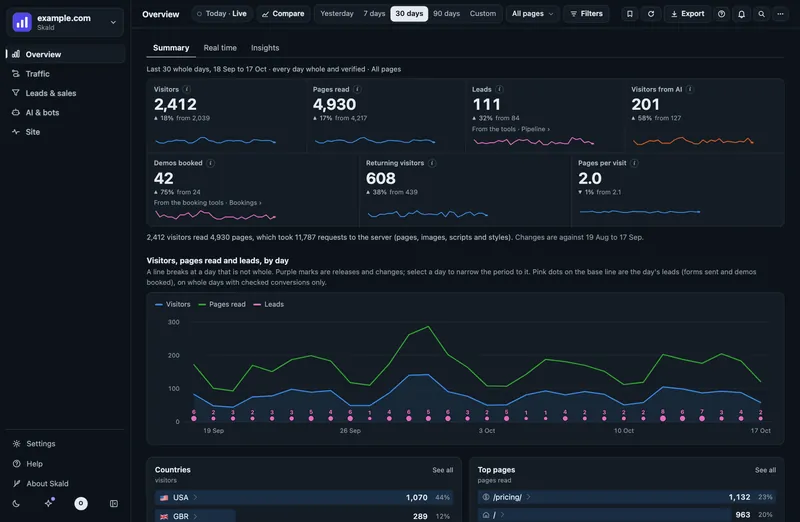
| Overview > Summary | Leads and Demos booked tiles for the period, with the change against the period before. Each tile says which count it is ("From the tools", "From the booking tools", or "From the lead database") and links to the same figure: Summary counting from the tools, or Calendar bookings. Pink dots on the main chart: each day's leads. |
| Overview > Summary, with Today · Live on | The Leads tile for today so far, against yesterday up to the same time of day (vs yesterday at this hour), and What converted today: each completed form and demo booking with its time, what it was, the page, the country with its flag, and where it came from (and where the visitor first came from, when that differs). A link opens all of today's on Leads. |
| Traffic > Sources | Leads and Lead rate beside each source's visitors. |
| Traffic > Pages | Landing pages, with leads: visitors who started on each page, its leads and lead rate. |
| Traffic > Places & devices | Leads and Lead rate beside each country. |
| Overview > Insights | Findings about leads, for example "Leads from AI assistant up 60% week on week" or "/pricing/ is the page that started the most leads". |
With Compare with… on, the Traffic grids add the other period's visitors and the change; their lead columns stay the period in the top bar's.
Which touch each column uses:
- Sources: the last touch, the source of the visit the lead was sent from.
- Pages: the landing page recorded with the lead (its first visit's, when known).
- Places & devices: the lead's country, from the tool or the visitor's address.
The honesty rules are the same as everywhere:
- Only days with checked conversions count. A day the second count disagreed on is withheld. A day before conversions were recorded is "not recorded", never zero.
- The lead rate is leads per visitor over the same days only: days whole in the visitor figures and checked in conversions. It is given over at least 10 visitors. Below that you see the count alone, with "too few to say".
- A change (Overview, Compare with…) is shown only when both periods are whole and every day of both has checked conversions.
- Insights about leads follow the same rules as the others: two whole periods, at least 5 leads, a change of at least 20%. A finding the second count does not confirm is left out, and the tab says so.
- Leads are counted for the whole site. On a page group (for example one language), the lead columns are not shown.
A lead reported by two roads (for example the script tag and the lead database, for the same form) counts on each, as on Summary with Count from: Tools. A lead that arrived from two tools with the same reference (for example the lead hook and Zapier, or a hook and the lead database) is flagged as "One lead, two tools" under Settings > Integrations > Status and by the server's doctor command. The script tag's own rows are not part of that check.
Where leads and conversions come from
There are four sources. You can use one or all of them.
| Source | What it gives | Shown on |
|---|---|---|
| Your website's lead database | every lead, its kind, its status, first and last touch | Leads; Summary and Sources (Lead database and Tools) |
Your site's lead push (the lead hook) | a lead your own server reports the moment it is made | Leads; Summary and Sources (Tools) |
| Webhooks from your tools | bookings, cancellations, no-shows, form answers, payments, CRM deals | Leads; Summary and Sources (Tools); Calendar bookings |
The skald.js script tag | forms started and sent, booking widgets opened and booked, phone and email clicks | Leads; Summary and Sources (Tools); Calendar bookings; Events |
The lead database
If your website keeps its leads in its own database, the person who runs your Skald server can point Skald at it. Skald opens it read-only and never changes it. Every two minutes it reads the leads that changed.
- Leads marked
spamorduplicateare left out of every count, and counted apart. They are listed in full on Leads, under More > Show left out. - A lead's status (new, contacted, qualified, won, lost) is read as it is now. When your team changes a status, past days change with it.
- Names and emails are read and kept only when Leads' names and emails is full (Settings > Data retention > People). Owners and admins then see them on Leads, in the person search and in the left-out lists. See Privacy.
Your site's lead push
Your site's own server can tell Skald "a lead was made" with a signed message. See Webhooks, section "Your own site's lead push".
Webhooks from your tools
Calendly, Cal.com, HubSpot, Typeform, Stripe, Zapier and Make can send Skald a signed message for each booking, form or payment. This is how Skald learns about cancellations, no-shows and payments, which the page itself never sees. See Webhooks.
The script tag
One line on every page lets Skald see what happens inside the page: a form started, a form sent, a booking widget opened and booked. Only the script tag can see a start, so only it makes "abandoned" possible. See The tracking script.
One name per action
Whatever reports it, an action gets one name, so the same thing is never counted under two names.
| Action on the page | Means | Reported by |
|---|---|---|
| Demos | a demo or meeting booked | Calendly, Cal.com, HubSpot meetings, the script tag, the lead database |
| Contact forms | a form sent | the script tag, Typeform, HubSpot contacts, the lead database |
| Sign-ups | a sign-up form sent | the script tag, the lead database |
| Early access | an early-access or waitlist form sent | the script tag, the lead database |
| Payments | a Stripe Checkout paid | Stripe |
| Deals | a HubSpot deal moved to won | HubSpot |
| Phone clicks, Email clicks, Button clicks | a tel: link, a mailto: link or a marked button clicked | the script tag |
Each action has a stage: started, completed, paid, cancelled, rescheduled, no-show, won or lost.
A lead counts once, even when it is won or lost later
A lead is counted once, on the day it was completed: a form sent, a demo booked (or a payment made). When your team later marks it won or lost, in your lead database or through your tools, it is still that one lead, on that same day:
- the outcome never adds a second lead and never takes the first one away;
- the day the outcome arrives counts no lead for it;
- won and lost are shown apart, as outcomes: the Status option on Summary, Stage now on Leads, and Won on Calendar bookings;
- a "won" or "lost" for something that was never completed is not a lead.
This is the same on Overview's Leads tile, the daily and weekly mails, client reports and Leads & sales. Only spam and duplicates are taken out of the leads.
Summary and Sources, counting from the lead database
Open Leads & sales > Summary (the figures) or Sources (where they came from). Count from: Lead database is the default. The period governs most of the tab. Overview's Leads and Demos booked tiles count from the tools when the tools are set up: choose Tools here for the same figures. A kind of lead the lead store has never recorded (often Demo opened and Demos booked, which come from the booking tool) shows Not set up with a link to Calendar bookings, never 0.
The figures at the top
- Leads: sign-ups, contact forms and early access, with spam and duplicates removed.
- One figure per kind: Sign-ups, Contact forms, Early access, Demo opened, Demos booked.
- Leads per 100 visitors: leads against the visitors of the same verified days. It is given only over at least 10 visitors.
Under them, a line says how many spam and duplicate leads were left out. Select Show them, with test leads, or turn on Show left out in the options, to see each one: when it came, its kind, page, first and last source, and its status. Leads marked test are listed there too. Owners and admins also see the email and name, when your site keeps them.
Per day, by kind
A chart of each kind of lead per day. A hatched stub is a day with no lead counts. That day is not recorded, never zero.
Where they came from
Each lead is shown twice, by its First touch and by its Last touch:
- First touch is the source the lead's own browser remembered from its very first visit.
- Last touch is the visit the form was sent from.
There are four tables: by Source, by AI assistant, by Campaign and by Landing page. A lead without a value is said under the table, not shown as a row.
Likely from an AI assistant
Many people who click a link in a ChatGPT, Perplexity, Claude, Copilot or Gemini answer arrive with no referrer. Their touch then says "Direct" (no referrer and no campaign tag). The Likely AI (inferred) table, beside the four above, gives Skald's best guess for those touches, by first touch and by last touch. It is an estimate, never a count.
How Skald guesses:
- The touch came with no referrer and no campaign tag.
- When someone asks an assistant, the assistant fetches the page from your server at that moment. Skald keeps those fetches: which assistant, which page, which minute.
- If an assistant fetched the touch's landing page in the same minute or up to 15 minutes before, the touch is likely from that assistant. Your server's admin can change the window (
attribution.ai_window_minutes).
What it shows:
- ChatGPT (or another assistant): one assistant fetched the page in the window.
- More than one: two or more did. The lead counts once.
- A touch that was not direct, or whose page no assistant fetched in the window, is not in the table.
- Not recorded, under the table: Skald did not keep the fetches for that time. For example, the touch is from before this feature, more than 180 days ago, or today (today's fetches are kept the next morning).
Why only "likely"? A fetch can be for someone who read the answer and never clicked. A direct visit a minute later can be someone else. Skald never adds these to the AI assistant source or to any count. The (i) beside the title says the same.
Lead quality by source
Statuses by first-touch source: New, Contacted, Qualified, Won, Lost, Spam, Duplicates. The column Qualified or won, of reviewed is the share of leads that are no longer new and were marked qualified or won. It is given over at least 10 reviewed leads. If every lead is still "new", the tab says so and shows no zeros.
Time to convert
- From first touch to lead: how long after the first visit the lead came, in buckets from "Under an hour" to "Over 90 days".
- Visits up to the lead: the browser's own count of its visits when it sent the form.
Funnel, by source
From visitors to demos booked, per source: Visitors, Saw pricing, Opened a form, Opened the demo, Became a lead, Booked a demo. Each step is shown as a share of that source's visitors, over at least 10 visitors.
The first three steps are visits from your server log. The last three come from the lead database, by the lead's first-touch source. Skald puts them side by side for the same days. It never joins one lead to one visit.
Summary and Sources, counting from the tools
Open Leads & sales > Summary and set Count from to Tools. If nothing is set up yet, the tab lists each source as On or Off and says what to turn on. Summary shows Leads, Demos booked, Won and Lost against the period before, Every action side by side and the Best sources; Sources shows where the completed ones came from, the touches, the time to convert and the pages seen before.
Every action
One row per action, with these columns:
- Started: starts seen by the script tag. "not seen" means no start was reported, for example an action only a tool reports.
- Completed: completed and paid together. A lead that sent both counts once.
- Abandoned: see below.
- Completion rate: completed out of started, given over at least 10 starts.
- Cancelled or no-show, Won, Lost.
Calendar bookings: the demo funnel
Leads & sales > Calendar bookings holds the calls booked through Calendly and Cal.com, and the payments Stripe reports where your site sends them, with the script tag and the lead database. Pick the booking action in Booking. For demos: Opened the booking, Chose a time, Booked, then Cancelled, Rescheduled, No-show and Won. "Chose a time" is a count of page events from a Calendly embed, not of browsers. Cancelled, rescheduled and no-show need the booking tool's webhook. Under Where the booked ones came from, a breakdown the booking tool does not carry (first touch, landing page, country, device) is named in one line instead of a card that only says "Not recorded".
Where the completed ones came from
Completed conversions by Source (last touch), First touch, Campaign, Landing page, Country, Device and Reported by (which source told Skald). A value Skald was not told is shown as "Not recorded", never guessed.
First, last and assisted touch
- First touch: where the browser, or the lead, first came from.
- Last touch: the visit it converted in.
- Assisted: a source seen earlier in a converting browser's journey that was not its last touch. Each conversion counts once per source.
Assisted needs anonymous visitor IDs (below).
Likely from an AI assistant (conversions)
The section Likely from AI assistants (inferred): completed conversions whose first touch was direct, by the assistant that likely sent them, the same guess as with the lead database. The first touch is the lead's or the tool's first touch; for the script tag, the browser's first visit. "Not recorded", under the table, means the first touch, or the fetches around it, were not kept. Likely, never certain, and not part of the sources above.
Time to convert
From first touch to converting and Visits before converting, for completed conversions. A conversion whose first touch is dated after it is counted as a clock error and left out.
Pages seen before converting
For the last 30 days: the share of converting browsers that saw each page before converting, beside the share of browsers that did not convert. Use it to ask "does the pricing page help?". It needs visitor IDs.
The latest leads, on Leads
Leads & sales > Leads lists every lead of the period, newest first (see The Leads tab). A row opens its steps and the pages its browser read, for example "Demo started, then completed". Owners and admins find one person, with every visit and lead, with Find a person.
Cancelled, removed and test
Nothing is hidden. On Leads, More > Show left out lists the test, spam and duplicate leads beside the counted ones. Calendar bookings lists, in full, the conversions the figures do not show as completed, under More > Show left out:
- Cancelled or no-show: bookings the booking tool reported as cancelled, or as a no-show.
- Removed: rows a lead-database sync took away. For example, the lead was deleted, or marked spam. Each row is kept whole, with when and why.
- Test: conversions marked as a test (see below). They are kept and listed, and never counted.
Each one shows its row and, when it had a visitor ID, the pages it read.
Marking a conversion as a test
A test booking or form should not count. There are three ways to mark a test lead. All three make the same mark, on every stage of the same booking or lead (the same reference from the same tool):
- In the dashboard (owners and admins). Open the lead: a row on Leads, a booking on Calendar bookings, a conversion in a visitor's drawer, in Find a person or in the Show left out lists. Under its reference, press Mark as test. Skald asks first: "Mark u-119797 as test? It stays listed under Show left out and leaves every count." Press Mark as test again to do it, or Cancel. A short message says how many steps were left out, and the list and the counts update. On a test lead the same button says Not a test: it counts the lead again. Viewers do not see the button.
- From your site's server. Send your team's own accounts with
"test": true, or mark leads you already sent with the signedleads/testcall. See Leads from your server. - On the server. The server admin runs
ti.py conversions list example.comto see the latest conversions with their numbers, thenti.py conversions mark-test example.com 6 7to mark conversions 6 and 7 as test, orti.py conversions mark-test example.com --ref u-1001to mark every step of the lead with that reference. To count one again:ti.py conversions mark-test example.com 6 --unmark.
A lead sent with the wrong step or action can be taken out of the counts without deleting it: the server admin runs ti.py conversions remove example.com --ref u-1001 --why "sent twice" --dry-run to see what would go, then the same without --dry-run. Each removed step is kept, with when and why, under Show left out > Removed on Calendar bookings. Your site can then send the lead again, correct.
One lead counts once: if your site sends both a completed and a paid step for the same reference and kind of lead (a sign-up that later paid), it is one lead, on the day of the first one. The second step shows in the lead's drawer.
A test conversion is left out of every figure, and of the second count too. It stays listed, marked test, under Show left out on Leads and on Calendar bookings. Each change is written to the audit log with who made it, never the reference or a name. A later step of a marked lead (won, lost) is test too.
For a lead in your website's lead database, mark it spam there, or give it the status test.
What "abandoned" means
A conversion is abandoned when all of this is true:
- The script tag saw it start (a form field used, a booking widget opened).
- The start carried an anonymous visitor ID.
- Neither the same browser nor the same person (the same email, when your site sends it) completed or paid for the same action within the abandon window. The window is 24 hours unless your server sets another. So a demo opened today and booked tomorrow from another device is a booking, not an abandoned demo.
So:
- A start still inside the window is not counted as abandoned yet.
- A start without a visitor ID cannot be judged, and is never counted as abandoned.
- Abandoned is worked out each time the tab is drawn. It is not stored.
How a conversion is tied to a visit
Skald ties a conversion to a journey only through an anonymous visitor ID: a random ID the browser makes, such as skv_ followed by 22 letters and digits. It holds no name, email or fingerprint.
- The script tag makes the ID and sends it with each event.
- It adds the ID to Calendly links and embeds as
utm_content, and Calendly sends it back in its webhook. - For other tools, the ID is passed in a hidden field or a metadata value. Webhooks says how for each tool.
- Your site's lead push and lead database can carry the same ID.
The figures never match by IP address, and never link a new ID to an old one. A visitor ID is a browser, not a person: one person on a phone and a laptop is two browsers. The person search can show, apart from the figures, the visits that sent a form at a lead's time: a match by time, never certain. See Privacy.
Visitor IDs are off by default. An owner or admin turns them on per site in Settings > This site > Sites > Script tag. Integrations says whether they are on. Your privacy notice must say so, and some places need consent first. See Privacy.
Without visitor IDs, conversions are still counted, but there are no journeys, no abandoned counts, no assisted sources and no pages seen before converting. With them off, Skald keeps no visitor ID from any road: not from the script tag, not from a webhook's vid, and not from your lead database's session column.
Goals
Skald's goals are not set on Leads & sales' figures. A goal is a page event, such as "demo booked" or "sign-up sent", shown per 100 visits by source on Leads & sales > Events. Admins choose them in Settings > This site > Sites > Goals. See Funnels and goals.
When a figure is missing
- Withheld: every figure is counted twice, by two separate roads. When they disagree on a day, that day is withheld and left out of every sum. The tab says which days and why.
- Not recorded: days before a source was set up are not recorded, never zero.
- Too few to say: no rate is given over fewer than 10.
Finding one person
Owners and admins can type an IP address, an email, a lead's number or a visitor ID in Leads & sales > Find a person, or in the search box at the top (or Ctrl K). It shows that person's visits, leads and conversions, spam, test, cancelled and removed ones too, linked together. Each search is written to the audit log. See Privacy.
Removing a person's data
To delete one person's data (for a privacy request), ask the person who runs your Skald server. They run ti.py forget with the email, IP address, visitor ID or lead reference. It deletes their conversions, the removed rows, their name and email, and the visits kept with their address.