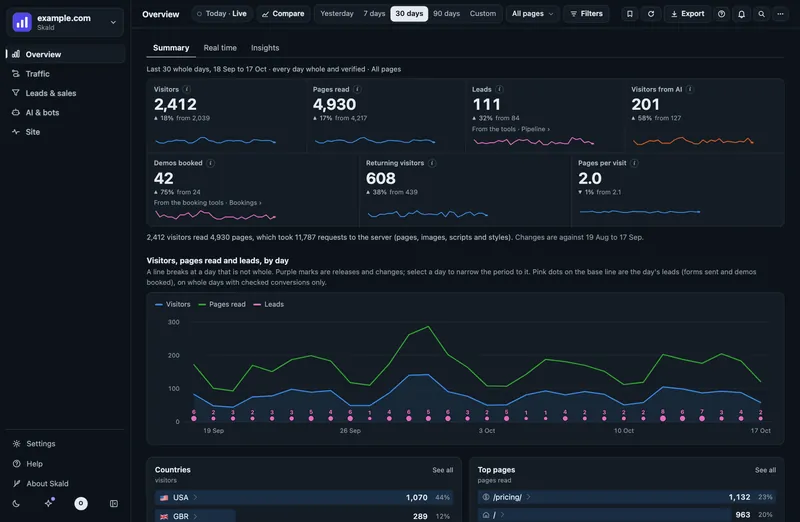
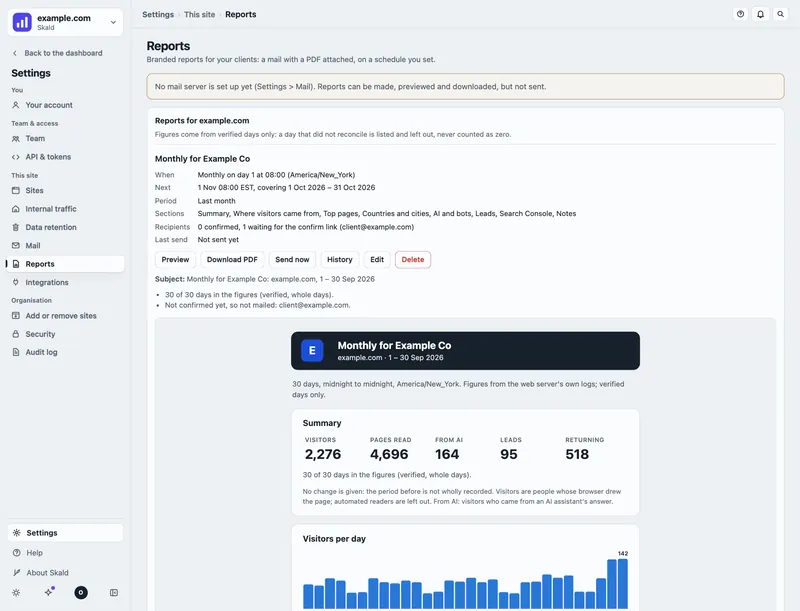
Opening Settings
Select the gear at the foot of the sidebar, or press g then , (comma). The settings menu takes the sidebar's place while a settings page is open.
Settings pages come with accounts. On a server with one shared login, most of these values are set in the server's config file by whoever runs it, and the pages say so.
A page you may not change is shown read-only, with the reason beside each field. Pages your role cannot use are left out of the menu.
The settings menu
| Group | Pages |
|---|---|
| You | Your account |
| Team & access | Team, Connections (Users, on a server with one shared login) |
| This site | Sites, Internal traffic, Data retention, Mail, Reports, Integrations, AI answers |
| Organisation | Add or remove sites, Security, Audit log, Billing |
Back to the dashboard, at the top of the settings menu, returns to the page you came from.
These pages have guides of their own:
- Your account and Team: Sign-in and team.
- Connections (called API & tokens before): Connections, API and MCP.
- Internal traffic: Internal traffic.
- Integrations: Tracking script and Webhooks.
- Reports: Client reports.
- AI answers, and its API keys in Integrations: AI answers.
Who may change what
"Admin" means an owner or admin of the site's organisation. "Install admin" is a flag the server admin gives to a person, for settings that apply to every site on the server.
| Page | Part | Who may change it |
|---|---|---|
| Data retention | Detail kept for this site | Admin |
| Data retention | People (IP addresses, names and emails) | Admin |
| Data retention | Leads (how long leads and their pages are kept) | Admin |
| Data retention | Backups | Install admin |
| Reports | Admin | |
| Mail server (SMTP), Google PageSpeed | Install admin | |
| Reports | Client reports, agency branding | Admin |
| Sites | Host names, Views, Time zone | Admin |
| Sites | Log file | Install admin |
| Sites | Goals | Admin |
| Integrations | Hooks, event types, outgoing webhooks | Admin |
| Integrations | AI answers: the assistants' API keys | Install admin |
| AI answers | The site's lists, tracking profiles | Admin |
| Security | Sign-in rules | Owner |
| Audit log | (read only) | Admins may read it |
| AI & bots > Crawler rules | Every crawler | Install admin |
| Add or remove sites | Add a site | Admin |
| Add or remove sites | Remove a site | Owner |
| Billing | Plan and payment | Owner |
Viewers see the pages read-only.
Data retention
Data retention sets how long the detail is kept. Totals, page milestones and every stored day's figures are kept forever. They are not a setting.
| Setting | What it keeps | Range | Default |
|---|---|---|---|
| Detail days | Each visit by its labels, and each page's daily figures (used by Compare with… and the page story) | 30 to 3650 days | 400 |
| Journeys | Anonymous visits: start time, country, device, source, pages in order | 1 to 90 days | 7 |
| Returning-visitor matching | How long a visitor can be recognised as returning | 1 to 90 days | 30 |
| In-page events | Events from the script tag | 30 to 3650 days | 400 |
| Visits with addresses | Each visit with its IP address and browser (card People) | 1 to 3650 days | 395 |
| Leads and the pages they read | Each lead, its name and email, and the pages its visitor ID read (card Leads) | Kept for good, or 1 to 3650 days | 400 days |
| Pages of visitors who have not signed up yet | The pages read with a visitor ID that has no lead yet (card Leads) | 1 to 400 days | 30 |
| Daily backup copies | Copies of the history on the server, for every site | 1 to 60 | 14 |
| Weekly backup copies | Weekly copies of the history | 0 to 52 | 8 |
Each field says where its value comes from: this site, the organisation, the whole server, the config file, or the default.
People
The People card says what Skald keeps about the people who visit:
- Keep visitors' IP addresses: each visit is kept with its IP address, browser, times, pages in order, source, referrer, campaign, country and device. Admins can then look a person up with the search at the top. Three choices:
- Full address: the whole address.
- Shortened (last part removed):
203.0.113.57is kept as203.0.113.0. Switching from full shortens the addresses already kept at the next nightly run. Switching back to full keeps only new visits in full. - Don't keep: no address is kept, and the visits already kept with one are deleted at the next nightly run.
- Visits with addresses: how many days those visits are kept. The default is 395.
- Leads' names and emails: full keeps a lead's name and email with its conversions; anonymous keeps neither.
A new install keeps both. An install that was upgraded from a version before 2.4.0 keeps neither until you turn them on. The field then says "kept off by the upgrade to 2.4.0". Your privacy notice must say what you keep before you turn them on. See Privacy.
Below the card, Wording for your privacy notice gives a short text made from these settings, with a Copy button. Fill in the parts in [square brackets]. It is a starting point, not legal advice.
Leads
The Leads card says how long Skald keeps your leads. A lead is a form sent or a call booked.
- Leads and the pages they read: each lead, with its name and email (when Leads' names and emails is full), where it came from, the pages its visitor ID read, and the leads a sync removed. Two choices:
- Kept for good: Skald never deletes them. Nothing is removed at any nightly run, however old.
- N days: each lead is deleted N days after it came, with its pages. The default is 400 days.
- Pages of visitors who have not signed up yet: the pages read with a visitor ID that has no lead, kept for this many days (1 to 400, default 30). Once that visitor sends a form or books a call, all their pages are kept with the lead, for as long as the lead is kept.
What is kept for good:
- the leads, every stage of each (sent, booked, paid, won, lost), and the ones marked test;
- the leads a sync removed (under Show left out > Removed);
- the pages read by a visitor ID that became a lead;
- the name and email of each lead (when you keep them);
- the raw copy of each hook message, which the second count recounts leads from. So old days still add up.
What still goes: the log of hook deliveries after 90 days, and the pages of visitors who never became a lead, after the days you set.
"Kept for good" means Skald never deletes them by itself. A person's own request to be deleted still works: your server admin runs ti.py forget --email ... (or --lead, --vid), and everything about that person goes. See Privacy. Your privacy notice must say how long you keep leads: the Wording for your privacy notice card says "until you ask us to delete them" when they are kept for good.
The server admin can set the same from the shell, for one site:
ti.py settings set example.com conversions.retention_days forever
ti.py settings set example.com journeys.vid_days 400
0 means the same as forever.
Keeping less
Making a window shorter removes stored data, so Skald asks first.
- Type the new, smaller number (or pick days instead of Kept for good) and select Save.
- The page shows what will go: how many rows and days.
- Type the site's name to confirm, then select Yes, keep less. Or select Keep it as it is.
Nothing is removed at once. Removal happens at the next daily run.
A change to Returning-visitor matching also changes who counts as a returning visitor from then on.
If your server sells plans, your plan may cap the detail you can keep. The page then says "Capped by your plan".
Mail sets the mails Skald sends.
Reports
- Daily mail: sent after each morning's run.
- Weekly mail: sent on Mondays.
- Recipients: up to 20 email addresses.
- From name: the name the mail comes from.
Each new recipient first gets one mail with a confirm link. They get nothing else until they open the link and select the button on that page. The link works once, for 7 days. Until at least one address is confirmed, the reports are held back, not failed.
The mails carry figures only, never an address and never a journey. A mail that would include a withheld or partial day is held back.
Mail server (SMTP)
For install admins. The sender address, server, port, security, user and password apply to every site on the server. The password is write-only: the page only says whether it is set.
Google PageSpeed
A free API key raises Google's daily limit for the tests on Site > Speed. It is write-only too.
Preview the mail
Owners, admins and install admins can see the daily or the weekly mail exactly as this site would send it now: select Preview the daily mail or Preview the weekly mail. The mail is built from the same checked days, by the same code, and shown on the page with its subject. Nothing is sent, and no mail server is needed. When the mail would not go now (a day held back, a week not whole), the preview says why.
Send a test mail
Owners, admins and install admins can send a short test mail through the settings above.
- Type the address in Send to. It must be your own address or a confirmed recipient.
- Select Send test mail.
At most 3 test mails in 10 minutes.
Alerts and failure mail
Alerts always show on Site > Alerts and on the bell in the top bar. They go to confirmed recipients only.
Admins and owners switch alerts on or off for this site under Which alerts are on on Site > Alerts:
- All alerts: the switch for every rule. While it is off, nothing is checked, and the page offers Turn alerts on.
- Mail alerts: off, alerts are only shown here, never mailed.
- Each rule (site down, server errors, a crawl burst, AI started reading, and the rest): on or off by itself.
A change applies from the next live run, within 2 minutes. How much makes an alert (the thresholds) is set in the server's config. A switch the server's config locks shows its reason and cannot be changed here. Viewers see the switches but cannot change them.
If the morning run fails, the server can send one short failure mail. It goes to the same people as the daily mail: the confirmed recipients on this page, or the server's own list when none is set here or none has confirmed yet. It uses the mail server set on this page or on the server. A day held back because it did not add up is not a failure, so it sends no failure mail.
Sites
Sites says what counts as this site, and where its log is.
- Host names: the names this site answers to, such as
www.example.comandexample.com. 1 to 50. - Views: page groups, one per line: a name, the path it starts with, and any paths to leave out. Up to 20. They show in the Page group list in the top bar, which reads All pages until you pick one. See "Views (page groups)" below.
- Time zone: the site's own zone. Days are counted midnight to midnight in it.
- Log file: the log folder and file name. For install admins.
- Goals: the page events that count as this site's goals, such as Sign-up sent or Demo booked. Tick up to 10. The events your site has already counted are listed first; the others are under Not counted yet. See Funnels and goals.
Changes apply from the next run. Days already stored are not counted again, except a new page group's (below).
Views (page groups)
A page group is a part of your site you want to see on its own, such as the blog or the Canada pages. Each one gets its own pages, with the same figures as the whole site, counted the same way. Pick it in the Page group list in the top bar (it reads All pages until you do).
Write one group per line: its name, the path it starts with, and any paths to leave out, separated by |. Several paths to leave out are separated by spaces.
For example:
Blog | /blog/: every page under /blog/, and /blog itself.Canada | /ca/ | /ca/fr/: the Canada pages, but not the French ones under /ca/fr/.Security pages | /security/: every page under /security/.Rest of the site | | /blog/ /ca/: every page except the blog and the Canada pages.
Paths start with / and match the start of the address's path, capital letters counted, never the part after ?. Up to 20 groups.
What fills automatically. A new group counts from the next run. Its past days are filled from the server's raw log: under the Views box, Fill past days for the new groups is ticked. Press Save and Skald counts the new or changed groups again for every whole day the raw log still holds, in the background. The box below shows how far it is: "Filling 9 days… 4 of 9", then "Done: 9 days filled, all audited". Each day is checked by a second, separate count, as every stored day is; a day where the two disagree is held back and not shown. Untick the box and Skald offers the same with a Fill past days for the new groups button instead. One fill runs at a time on a server; owners and admins can start one.
What cannot be filled. The raw log keeps only the last days, 14 on most servers. The box says so: "Days before 13 Oct can't be filled: the raw log is kept 14 days." In the group's pages those earlier days show as not recorded for this group, never as 0.
A renamed group counts as a new one. A removed group leaves the Page group list; nothing needs counting again.
Logo
Each site shows its own logo: on the page where you choose a site, in the menu's site button, in the site switcher and on the browser tab. The card shows it at those three sizes, and what Skald found on the site.
Choose where it comes from:
- From the site (automatic): Skald asks your site itself for its app icon, then its favicon. It never asks an outside icon service. It asks again once a week. Check the site again now asks at once.
- Upload my own: a PNG, SVG or ICO file, square, at least 64 x 64 pixels, at most 256 KB. An SVG that could run a script or load something from elsewhere is refused; save it again as a plain drawing, or upload a PNG.
- A letter on a colour: the site's first letter on one of four colours. Skald also shows this while there is no logo.
Press Save. Owners and admins can change the logo; everyone else sees it.
Add or remove sites
Add or remove sites lists your organisation's sites. If your server offers it, an admin adds a site here with Add a site, step by step: the site's address, proof it is yours, how its visits reach Skald, the install, and a test. You can stop at any step and continue later. A site not finished shows Setup: step 3 of 5, continue; a finished one that has received nothing for a day shows No visits yet: test the connection. See Connections, "Add a site, step by step".
A new site gets a page at once, with a short "Getting ready" note until its first figures arrive.
Only an owner can remove a site. A removed site stops being processed. Its data is kept until the server admin deletes it.
Crawler rules
The rules for AI crawlers are not in Settings any more. They are on AI & bots > Crawler rules, next to the crawlers they apply to. Old links to Settings > AI crawlers open that tab.
Crawler rules lets each AI company's crawlers in, or keeps them out. If your server offers it, each company has three choices:
- Allow: every crawler of that company may read the site.
- Block training only: crawlers that collect for training are kept out. AI search and answers to people's questions still reach the site.
- Block: every crawler of that company is kept out.
Each crawler can also be set on its own: As the company, Always allow or Always block. Beside each one is how often it was refused in the last 30 days.
Select Save. The tab says "Saved. Being applied to the site..." and then "Live on the site" within a few seconds. Undo changes puts back what was saved before.
A blocked crawler gets a refusal before the page is served. Some crawlers cannot be told apart by the server: they are marked "robots.txt only", and only a line in your robots.txt can ask them to stay away. The tab suggests the lines to use, with a Copy button. Under the rules, your site's robots.txt is shown beside each crawler. Skald never writes your robots.txt.
These rules apply to every site on the server, so only an install admin may change them.
Suggested llms.txt
AI & bots > llms.txt shows Suggested llms.txt: a file you can publish at /llms.txt on your site. It follows the format at llmstxt.org: your site's name, a one-line summary, then links to your pages, grouped by section, so an AI assistant knows which pages matter.
Skald picks the pages people and AI assistants read most over the last 90 days. Only recorded days count; any day left out is named. It leaves out private pages (sign-in, account, cart, search, admin), pages your robots.txt keeps crawlers from, redirects, and pages that are gone. With your website's page list, each link has the page's title; without it, the link is named by its path.
Write the summary line yourself and check the links. Then select Copy or Download and publish it on your site. Skald never writes it to your website. Your server admin can also print it with ti.py llms-txt.
Security
Security sets sign-in rules for everyone in the organisation. Only an owner may change them.
- Require two-step sign-in: members without it set it up the next time they sign in. Turn it on for your own account first.
- Session length: how long a sign-in lasts at most, 1 to 90 days. The default is 14.
Audit log
Audit log shows who changed what, and when, newest first: settings, the team, tokens, sign-ins and failed sign-ins. Admins may read it. Viewers cannot.
- Pick one kind of change in Action, or keep Every action.
- Select Download CSV to keep a copy.
No password, token, link or address is ever written to the log. Each person search is written too (people.search): what kind of value was searched and a one-way code of it, never the value. So is each conversion marked test or not (conversions.test, conversions.untest). Install admins see every organisation's rows.
Billing
Billing shows only on servers that sell plans, and only to owners. Other servers say "This server does not sell plans."
- Your plan: its name, status and trial days left.
- A table of use against the plan's limits: sites, requests this month, members and days of detail kept.
- Plans: select Choose and a plan's name to buy it.
- Manage billing: card, invoices and cancelling, on the payment provider's own page.
"Requests this month" counts every request the server logged for your sites, people and machines alike.
If your organisation goes over a limit, every page shows a banner. Nothing is deleted. If a payment is overdue, the organisation becomes read-only: you can still read every page, change your own account and pay, but not change settings or the team.