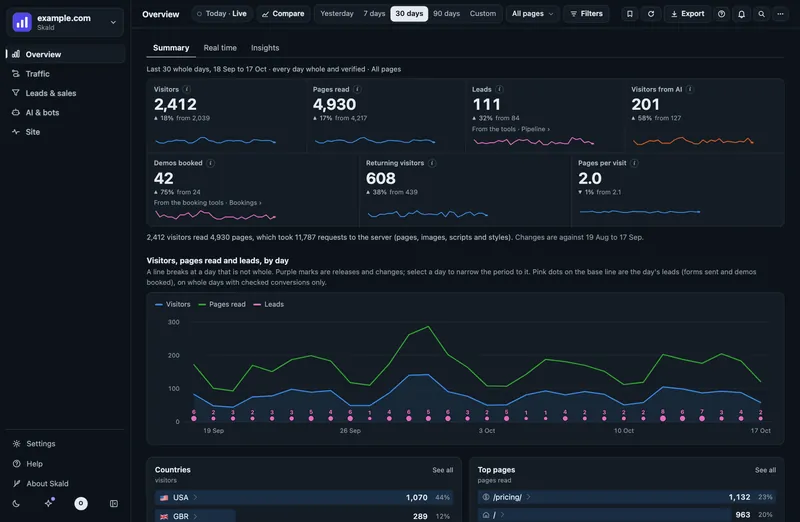
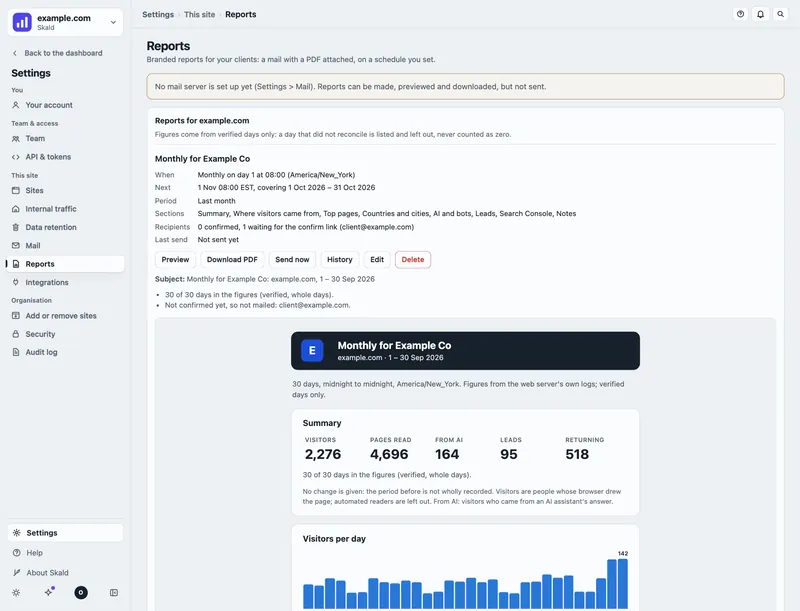
To look around first, open the live demo: the whole dashboard with two months of sample data for a made-up site. No sign-up. Saving and the settings pages need a running Skald, so in the demo they say so.
New here?
Four short guides take you from nothing to a working install:
- Docker: first install in 10 minutes: run it, sign in, fill the history, check it with the doctor.
- Pick your road: which way your leads and bookings should reach Skald, for your kind of site.
- Send leads from your backend in 5 minutes: the signed lead hook, with copy-paste examples.
- Demo bookings: Calendly and Cal.com, embedded, linked or by webhook, and keeping only your own event types.
Set up your site
For owners and admins, a new site's Overview > Summary starts with a Set up list named for the site, for example Set up example.com. Each line says in one plain sentence what works or what is left. A line that is left has a Set up button: it opens a short dialog that walks you through the fix, step by step. Each line ticks itself once the server's own checks see it working.
| Line | Done when | What Set up does |
|---|---|---|
| Logs arriving | The server's access log is read | Opens Send this site's visits to Skald, as in Settings > Connections: choose how, a sending token, install, test |
| Visits count as people | Browsers load the pages' own scripts and styles | Asks what the site is built with (Next.js, WordPress, something else, or files from a CDN) and saves it |
| Countries shown | Visits carry a country | Says what a country file adds, and writes the mail for whoever runs your Skald server |
| Script tag events (optional) | The script tag's events arrive | What the tag adds; the exact tag for this site with Copy, and where it goes (site builder or plain HTML, WordPress, Next.js); Send these steps to your developer or Share with your developer; a Test that waits for the first event |
| Lead hook tested (optional) | A hook passed a test or received a lead, and no hook's last real lead was refused | Where your leads come from (your own form or backend, Zapier or Make, Calendly, Cal.com, Typeform, Stripe, HubSpot); makes the secret; the steps with the address and secret filled in; Send a test lead, then waits for a real one |
| Mail recipient confirmed | The daily or weekly mail is on, with a recipient who opened the confirm link | Turns the mail on, takes the addresses, shows who still has to confirm, and sends a test mail |
| Privacy settings chosen | Someone chose whether IP addresses are kept | The three IP choices (full, shortened, none), leads' names and emails, then the wording for your privacy notice with Copy |
The server's own technical words (config keys, commands) are not on the line. Where there are some, they are folded under For your server admin.
The mail to your developer opens in your own mail program. For the script tag it holds the whole tag: the tag needs no secret. For a lead hook it holds the address and the steps but never the secret: give the secret separately, never by mail or chat.
A hook whose last real lead was refused (for example, its signature did not match) is never ticked: the line says leads are not arriving, and the fix is under For your server admin. A test that Skald itself sends (Send a test, or ti.py hooks test) and that fails is a failed test, never a refused lead.
On Overview the list goes away once every line that is not optional is done. Hide on Overview hides it there, for this site, in this browser. The same list is always at the top of Settings › Connections, even when every line is done (then it shows every tick and All set). To show it on Overview again, search for setup and choose Setup checklist.
Each Set up dialog has its own link, with its step: for example #overview/summary?setup=rsc&step=2. Send it to a colleague who is an owner or admin, and it opens the same dialog at that step (or at the first step that still needs a choice).
What Skald counts
Skald reads your web server's own access log. Every request the server answers is one line in that log, so Skald sees every visit, including the ones a browser script never sees: AI assistants, search engines and bots.
Each request lands in exactly one group, and the groups add up to the log exactly:
| Group | What is in it |
|---|---|
| People | A browser that is none of the groups below |
| AI assistants | AI crawlers that collect for training, crawlers that index for AI search, fetches made because someone asked a question, and people who followed a link from an AI answer |
| Search engines | Classic indexing, such as Google and Bing |
| Bots and scanners | Monitors, SEO tools, link previews from chats, and probes |
| Our own | Your team, your own crawler and your tests. Kept apart, never counted as people |
Keep three words apart:
- Requests are lines in the log. One page can make many requests.
- People are browsers that look like real readers. This is an upper bound: when in doubt, a request is not counted as a person.
- Machines are everything else: AI crawlers, search engines and bots. They are shown in their own units, never added to people.
AI traffic is not people. A person who clicks a link inside an AI answer is counted as a person, with the AI assistant as their source.
A browser that reads too fast is not a person either. A visit that loads 6 pages or more, all inside 2 seconds, is counted under bots as "too fast to be a person". A quick reader clicking 3 pages in 2 seconds is still a person. A site can change both numbers (site.too_fast_pages, site.too_fast_seconds).
A visit's pages. A visit shows the pages it loaded from your server and the steps seen in the browser, both: "3 pages (2 seen in the browser)". A step seen in the browser is a page shown from the browser's cache, or a click your site handled without loading a page. Skald sees it from the next request's referrer. It is drawn dashed in the journey, and it is never counted as a page view.
On Site › Requests, the script tag's own events to Skald (/traffic-beacon) say script tag event, and calls to Skald's hooks or log upload say Skald endpoint. Only a POST your own pages sent is a form post.
The optional script tag
If your site adds the skald.js script tag, Skald also counts what happens inside a page: button clicks, form steps, demo bookings, links out, and visitors who reach three quarters of a page. These show on Leads & sales > Events. The log's figures never depend on the tag. See Tracking script.
The menu
The sidebar has six sections. Each section has tabs along its top.
| Section | Tabs |
|---|---|
| Overview | Summary, Real time, Insights |
| Traffic | Visitors, Sources, Pages, Places & devices, Search, Retention, Time |
| Leads & sales | Leads, Summary, Sources, Calendar bookings, Funnels, Events, Find a person |
| AI & bots | Assistants, Crawlers, Crawl health, AI answers, Crawler rules, llms.txt |
| Security | Is anything exposed?, Your stack, Who is scanning us?, Attack attempts, Fake browsers, Block list, Alerts |
| Site | Health, Alerts, Requests, Not found, Speed, Data quality |
- Overview > Summary is where every visit starts: the period's headline figures, leads and demos booked among them.
- Overview > Real time is who is on the site now, on a live world map. See Real time.
- Overview > Insights lists what is working, what dropped, and what is new or gone, leads too. See Insights.
- Traffic is who came, from where, to which pages, on what, and when; Search adds Google's and Bing's own queries (Search) and Retention how many came back (Retention). A source of Direct means no referrer and no campaign tag. A country, device or touch the log did not carry says Not recorded.
- Leads & sales is what the visits brought: leads by stage, demo bookings, funnels, events, and one person's story.
- AI & bots is AI assistants (the pages they fetch to answer a question, and the visitors they send), crawlers, how crawlers find your pages (Crawl health), what the assistants answer about you (AI answers), which crawlers may come in, and your llms.txt.
- Security is who probes your server and what they tried, from the same log: whether any probe got a real file, scanners, attack attempts, fake browsers, a block list to review, your site's stack against known advisories, and security alerts. See Security.
- Site is the server: what it answered, open alerts, the request log line by line, pages not found, page speed and the data's own checks.
The address names the section and the tab, for example #traffic/sources. Older links, such as #sources or #live, still open the right tab.
Every view has its own link
Everything you open is in the address, so you can copy it from the address bar and send it, bookmark it, or reload the page and come back to the same place:
- the section and tab, the period, page group, filters and drill-down
- each table's sort, column filters, columns, search and page, and a tab's own switches (for example All or AI on Site > Alerts, or the engine and period on Traffic > Search)
- the drawer or dialog that is open, with what it shows: a visitor, a lead, a request, a cohort, a search row, a Set up or Connections dialog and its step, the saved views, the report builder, the shortcuts
Opening a drawer or a dialog adds one step to the browser's history, so Back closes it before it leaves the page. Closing it takes it out of the address.
A link opens what it names only for someone allowed to see it. When it names something you may not see, or something no longer kept, the page opens with one plain line instead, for example "That visitor is no longer kept (journeys are kept 7 days)" or "Not available to your role."
No address ever holds a visitor's IP address, an email or a person search. Where one would be (an address filter on Site > Requests, a drill-down by address, a person search), the link holds a short code instead that only your own browser can read back. Opened in another browser, it says so in one line. Every key the address can hold is listed in docs/ROUTES.md.
Copy a page's link, or open it
Wherever a page of your site or a web address is shown (the Pages and Landing pages tables, referring sites, requests, Search pages, AI and crawler pages, pages not found, a visitor's journey, a lead's landing page, the Live lists, the set-up dialogs and the site switcher), pointing at it or moving to it with Tab shows two small icons at its end:
- Copy copies the full address, with your site's own address in front of a path (
/pricing/becomeshttps://example.com/pricing/). The icon turns into a green tick for a moment. If your browser does not allow copying, it says Copy failed: select and copy. - Open in a new tab opens the full address in a new tab.
On a phone or a tablet the two icons are always shown. They never open the row's own detail: the row still does that when you select it elsewhere.
Two switches sit in the top bar on every page:
- Today · Live sets every tab to today so far, redrawn every 2 minutes. On Overview > Summary it shows today live: visitors on the site now, today's figures against yesterday at the same time of day, the map and what visitors are doing now (the newest visitors and their pages), sources and the flow, what converted and AI & bots, each linking to its full tab (Today, live). Turn it off to go back to the period you had.
- Compare with… puts another period beside this one. See Compare, below.
When your site reports leads (a form, a booking), they show beside the visitors on Overview > Summary, Traffic > Sources, Traffic > Pages, Traffic > Places & devices and Overview > Insights, not only under Leads & sales. See Leads on every page.
Settings, Help and About sit at the foot of the sidebar. Settings (the gear) has its own menu. See Settings and retention.
The round You button beside the gear holds your own choices:
- Theme: System, Light or Dark.
- Time zone: show times in the site's zone (the default), your own zone, or UTC. A time reads the same way everywhere: how long ago, then the moment, such as "3 h ago (18 Oct 13:43 EDT)".
- Your account, All settings, Help, Keyboard shortcuts, What's new, About Skald and Plain page (every figure, without scripts).
- Sign out.
On a phone, five sections sit in the bottom bar, and a section's tabs scroll sideways. Menu in the bottom bar opens Security, Settings, Help, About and your own choices.
Cities
Where is that visitor coming from? Countries come from your log, or from a country file. Cities need a city file: DB-IP's free "IP to City Lite" (a new one each month, free under CC BY 4.0, about 120 MB). Point Skald at it with logs.city_db in the config, or SKALD_CITY_DB in Docker (for example /geoip/dbip-city-lite.mmdb with -v /usr/share/GeoIP:/geoip:ro). tools/update-dbip-city.sh downloads it once a month.
With the file set:
- Traffic > Places & devices has a Cities table under the countries: visitors by city, each with its country's flag. Search it, sort it, download it, or select a city for its detail (its trend and the visits behind it). Choosing a country in Filters keeps only that country's cities.
- Each visit (the visit list, a visit's panel, a person's visits and Real time's newest visits) says where it came from: "Toronto, Ontario, Canada".
- Real time's map puts a dot on each city with visitors now. See Real time.
A city is counted for visitors only, never for bots, at the first page of the visit. It is the city's own point, not the visitor's street, and it is a lookup, not a guess: when the file has no city for an address, or names a city in another country than the visit's, the city says Not recorded. Cities start on the day the file is set; a period that reaches back before it says how many of its days have them. "IP Geolocation by DB-IP" is shown under the countries and cities, as DB-IP's licence asks.
Choosing a period
The date range sits in the top bar: Today · Live, Yesterday, 7 days, 30 days, 90 days, All time or Custom. Every figure on the page follows the period. Each section opens on its own default when the link names no period: Leads & sales on the last 7 days (a lead is rarer than a visit, so today is often empty), every other section on Today. A period you pick is kept in the address and stays as you move between tabs and sections; the default of one section is never carried into another, so moving from Overview's Today to Leads & sales opens on 7 days.
All time runs from the first day this site has data (its first recorded day, or its first lead when that is earlier) to the last whole day, and the period line says the day it starts: "All time: since Fri 21 Aug 2026, 62 days". The dashboard holds the last 180 days; when your site's data begins before that, the line says so ("All time held here: the last 180 days ... this site's data begins ..."), and no total counts days it does not have.
A few tabs keep a period of their own, so the date range is not shown there. A fixed Period chip takes its place and says the tab's own period: Now on Real time, each insight's own two periods on Insights, now and the last 30 days on Alerts, the last few hours on Requests, the rules as they are now on Crawler rules. Settings pages have no period at all. A part of a tab with a shorter period of its own says so beside its heading, for example Each visit on Traffic > Visitors (visits are kept 7 days).
To choose your own dates:
- Select Custom in the top bar.
- Pick the first day in From and the last day in To.
Days are counted midnight to midnight in the site's own time zone, whatever time zone you choose for display. The site's zone is set in Settings > This site > Sites.
A brand-new site has no whole day yet, so it opens on Today.
Whole days and withheld days
Every figure is counted twice, by two separate roads. A day is shown only when both counts agree.
| A day that is | Means |
|---|---|
| Whole | Both counts agree. It is in every total |
| Partial | The log covers only part of the day. It is left out of totals |
| Withheld | The two counts did not add up. Nothing is shown for it |
| Not collected | Skald was not reading the log that day |
A withheld day is never shown as zero. A figure that was not recorded is left blank, not zero. It is never guessed. When a period holds such days, the page says how many and which.
Something your site has never sent shows Not set up, with one line on how to set it up, never 0 or 0%: an event the tracking tag never sent (Leads & sales > Events), a kind of lead the lead store never recorded (Summary, Funnels), a heartbeat that never ran (Site > Health), or page speed never tested (Site > Speed).
On Site > Data quality, the reasons a day is Worth a look or Not trusted are listed above the days, each with how many days it covers. A stretch with no log line counts only when it is long for your site: an hour at least, and longer on a quiet site, where a night's lull is normal.
Today's live figures can be withheld too, if they do not add up. They come back at the next recount.
Filters
Select Filters in the top bar (or search for filters). The panel builds rules:
- Pick what to filter by: country, city, source type, referring site, campaign or UTM tag, AI assistant, where the visitor first came from, landing page, a page read, pages read, time on site, sent a form (lead), device, browser, operating system, new or returning, or crawler.
- Pick how: is, is not, contains, starts with, at least or at most. A rule can hold several values: "Country is USA, CAN" keeps either.
- Choose All rules (AND) or Any rule (OR). Add group puts a few rules in brackets with their own All or Any, for example "Device is Mobile AND (Source is ChatGPT OR Source is Perplexity)".
- The count at the top says how many visits match as you edit, and each rule says how many it keeps alone. Select Show N visits to apply.
Time on site takes words: 90 s, 1 min, 2:30. A value the log did not record never matches a rule by chance: "Country is not USA" leaves out visits whose country is not recorded, because they could have been in the USA. To find those, pick Not recorded as a value. Where having no value is an answer (no campaign, no AI assistant), None is a value too.
Active filters show as chips under the top bar. Select the cross on a chip to remove that rule, Edit filters to change them, or Clear all in the panel.
Where rules apply. Rules apply in full to the lists of single visits: Traffic > Visitors (the visit list and the visitor flow), Leads & sales > Funnels, and, for what a request carries (crawler, page, country, device), Site > Requests. The counted tabs keep each breakdown on its own, so they apply one value per breakdown and cannot cross them (for example, Canada AND Chrome). A rule a tab cannot apply is greyed out, and a line at the top of the tab says which, with a link to where it does apply, such as CAN's own view (the drill-down for that value) or each visit, on Traffic > Visitors. The count covers the visits kept for the period: single visits are kept 7 days, and the panel says which days it counts.
A country is shown as its flag and three-letter code, such as 🇺🇸 USA or 🇨🇦 CAN. Point at it to see the full name. A table's search finds a country by its code or its full name, and a CSV file has both: the full name and a Code column. A country the log did not record says "Not recorded".
If your site has several page groups (for example, the blog apart from the product pages), a Page group list sits beside the period.
Saved views
Save the tab, period, page group, rules and each table's sort, filters and columns under a name, and come back to them later. In the Filters panel, type a name under Save as a view and select Save view; the saved views are listed beside the rules, each with Copy link, Rename and Delete. They are also behind the bookmark button in the top bar, and in the More menu on a narrow screen. Saved views are kept in this browser.
Copy link copies an address that holds everything the view shows. Whoever opens it signs in first and sees it only if their account may open this site: there is no public share link. The address bar keeps every choice too, so any page can be shared the same way.
Tables
Every table works the same way:
- Sort: select a column's header. The first click sorts it (words A to Z, numbers and dates biggest or newest first), the second the other way, the third back to the table's own order. A value that was not recorded is always last.
- Filter columns opens a row of filters under the headers: words contain, numbers have a lowest and a highest (
1 minworks for a time), and a column with a few values lets you pick some. The button shows how many are on. - Columns chooses which columns show. The first column, the row's name, always stays.
- Export what you see downloads a CSV of the rows that match, in their order, with the columns shown: every matching row, not only the ones on screen.
- Select a row to open its detail, as before, whatever the order or filters.
The sort, column filters, columns and search stay in the address, so a reload, a link or a saved view brings the same table back. Moving to another tab starts its tables fresh.
Search
The magnifier in the top bar (or Ctrl K, Cmd K on a Mac) searches the figures and the dashboard at once. Type a few letters:
- Pages, countries, sources, referring sites, campaigns, AI assistants and crawlers seen in the period on screen. Type
pricingto find /pricing/,canadaorCAfor Canada,claudefor ClaudeBot and claude.ai. Each result says what it is and the period it was seen in. Choose one to open the tab that lists it with its detail panel open. - Tabs, Settings pages, Help guides, periods, saved views and actions, such as
mailfor Settings > Mail. - When nothing in the period matches, the days kept before it are searched, and the result says so.
Use the arrow keys and Enter, or click. The search only lists names; the figures are on the tab it opens.
Find a person
Owners and admins can also find one person. Type an IP address, an email or a lead number in the search: Find a person is the first result. On a wide screen there is also a Find a person box in the top bar. You see that person's visits, leads and conversions. Each search is written to the audit log. See Privacy.
Drill-down
Select any country, city, page, source, AI assistant, campaign, referring site, device, browser, hour, address or bot. A panel opens with its trend, the visits and the requests behind it.
- In every table and list, the whole row opens its value, not only its name. A small arrow after the name shows it. On the keyboard, Tab to a row and press Enter or Space.
- A row about one visit opens that visit instead.
- Keep selecting inside the panel to narrow further.
- At the top of the panel, Go to links jump to its visits and how they moved, a page's sources and its story, the Visitors tab filtered to it, and the tab that lists it.
- In the latest visits, each page of a visit opens that page's panel.
- Step back with the panel's Back button, the trail at the top, or the browser's Back button. Closing the panel (Esc or the cross) leaves the tab as it was, so the browser's Back button then goes to the tab and filters you came from.
When the panel has visits behind it, How these visitors moved draws them as a flow map. See Visitor flow.
On Traffic > Pages, select a page to see its story: when it was published, its first crawl, its first AI fetch, its first person and its first lead.
Traffic > Visitors
Traffic > Visitors shows what visits looked like, top to bottom:
- Visitor flow: where visits came from, the pages they read in order, and when they left. See Visitor flow below.
- Each visit: one row per visit, newest first. When, the country (flag and three-letter code, the name on hover), the city when your server has a city file, the device with its browser and system, the source (with "First came from …" when the visitor first came from somewhere else), New or Returning, the pages ("3 (2 in the browser)": steps seen only in the browser are said), the time on site and the pages in order. Select a row to open the visitor drawer. See The visitor drawer.
- New and returning visitors: the visits by new and by returning visitors, their shares, and each day as a column. Returning means the same visitor was seen on an earlier day in the 30 before (a keyed hash of the address and browser, kept 30 days). It is counted per visit, so two visits on a visitor's first day are both new. Each day's new and returning visits must add up to that day's visits, or the card is withheld. A day counted before returning visitors were is left out and named, never shown as zero. On Today it counts today so far.
- How engaged visits were: visits by pages per visit and by time on site, each adding up to the visits, with the typical (median) visit and the share that read one page and left. A log sees what was loaded, not how long someone read, so a long read of one page shows as a short visit.
- Where visits ended, Common next steps, and the engagement tables by source and device. A rate over fewer than 10 visits is left blank, and a note under the table says how many rows that is.
With a filter on, the two cards (and the line under the tab's title) count only the visits the filters keep, when that can be done honestly: they are rebuilt from the kept visits, and only when each day's kept visits are exactly that day's own figures (its visits, returning visits, pages per visit and time on site). The card then says Filtered: N of M visits, counted from each visit kept and checked against the days' own figures. When the period reaches past the kept visits (they are kept 7 days) or a day's kept visits do not match its figures, the cards show every visit and say For all visits: the filters above do not narrow this card, with why. Where visits ended and Common next steps follow the filters the same way, when each day's kept visits give back that day's own lists. The engagement tables by source and device, and New and returning by source, are always for all visits, and say so. The flow and the visit list follow every filter.
Visitor flow
Traffic > Visitors has a Visitor flow map. It shows how visits moved: where they came from, the pages they read in order, and when they left.
- Each column is one step: the source, then page 1, page 2 and so on. A bar's height is its visits. A band's width is the visits that moved from one bar to the next.
- A visit that ends flows to Left after 1 page, Left after 2 pages and so on. A visit with more pages than the map shows flows to Went on to more pages.
- Each column keeps its 7 biggest pages and folds the rest into Other pages, so every column still adds up to the visits.
- A page loaded twice in a row (a reload) counts once. Moves inside the site count, as in Common next steps.
- Start from picks the first column: the source type, or who sent them (the AI assistant or site). Pages picks how many page columns to draw.
- Point at or tab to a bar to see its visits, its share and where its visits went next. Click it, or press Enter, to open it.
- Table shows the same figures as rows, with a CSV. On a phone the table shows first.
The map uses the visits whose journeys are kept: today and the last 7 days. For a longer period it says which days it covers. Every filter applies. The same visits reconcile with Where visits started, Common next steps and Where visits ended for those days. A map that does not add up is withheld, not drawn.
The drill-down panel draws the same map for its visits (How these visitors moved), so a country, a source or a page has one too. Funnels draws one between its steps.
Insights
Overview > Insights says what changed, in plain words: what is working, what dropped, what is new or gone, what looks unusual and what is worth fixing.
- The five biggest come first. Size is how much moved and what it is worth: a lead counts more than a visit, an AI fetch or a crawl less, and a finding on small numbers less. Show all lists the rest.
- One card per subject. A site that is both a referring site and an AI assistant, or a source's visitors and its leads, is one card; the other findings about it are under more about this.
- One sentence, one number, one link on each card. The link opens the tab that shows it, filtered to it.
- Pick what to compare: Yesterday (against the 14 days before), 7 days or 30 days (against the same number of days before). Today so far lists only what is seen for the first time today, such as a new page or country; rises and drops need whole days, so they are under the others. A window with nothing in it says so.
Insights compare whole, checked days only, so the period in the top bar does not apply here.
Compare
Select Compare with… in the top bar and choose what to put beside the period:
- Previous period: the same number of days just before.
- Same period last year: 52 weeks earlier, so the weekdays match.
- Custom period: any whole days you pick, up to 12 months.
Tables then show A (the period in the top bar), B (the one you chose) and the change. Charts show B as a dashed line. A tab that does not compare says so in one line. Previous period and last year compare only when both periods are whole and checked; a custom period counts whole days and names any it left out. Turn compare off in the same menu.
These tabs compare: Overview > Summary, Traffic > Sources, Pages and Places & devices, Leads & sales > Summary, AI & bots > Assistants and Crawlers, and Site > Health. Leads, demos booked and every completed action are compared too, when every day of both periods has checked conversions.
Today is never compared: turning on Today · Live turns Compare off.
Export
Select Export in the top bar:
- Tables on this tab (ZIP): every table, with the current filters, as CSV files.
- This tab as JSON: the tables and the period's totals.
- Print this tab: a clean report. Choose Save as PDF in the print dialog to keep a PDF.
- Report builder: choose several tabs, the period, page group and filters, then print or download them together.
To read figures from a script or an AI tool, see API and MCP.
Keyboard shortcuts
Shortcuts do nothing while you type in a field.
| Keys | What it does |
|---|---|
| ? | Show the list of shortcuts |
| Ctrl K (Cmd K on a Mac) | Search: pages, sources, countries and more, or go anywhere and run anything |
| / | Search the list on this tab |
| [ | Shrink the sidebar to icons, or open it again |
| Esc | Close a panel or a menu |
| g then a letter | Go to a tab |
Letters to use after g:
| Letter | Tab |
|---|---|
| o, i | Overview > Summary, Insights |
| l | Overview > Summary with Today · Live on |
| c | Overview > Summary compared with the previous period |
| v, s, p, d, t | Traffic > Visitors, Sources, Pages, Places & devices, Time |
| e, x, f, n | Leads & sales > Leads, Calendar bookings, Funnels, Events |
| b | AI & bots > Assistants |
| h, a, r, k, w, q | Site > Health, Alerts, Requests, Not found, Speed, Data quality |
| u | Settings > Internal traffic |
| , (comma) | Settings |
Your site on Vercel, Netlify or behind Cloudflare
Skald needs a record of every request. A site on your own server has one: its access log. Other hosts keep that log to themselves, so it has to be sent to Skald. Whoever runs your Skald server sets this up once:
- Vercel: a Log Drain sends every request to Skald (Vercel Pro or Enterprise). On the Hobby plan, only the
skald.jstag works, so Skald sees people but not AI assistants or crawlers. Step by step: Skald for a site on Vercel. - Netlify: a Log Drain (Netlify Enterprise), set up the same way.
- Cloudflare in front of your site: pages Cloudflare serves from its cache never reach your server. Cloudflare's own request log (Logpush) or the small Skald Worker, on any plan, sends them to Skald. No visit is counted twice. See the FAQ.
The full list of hosts, with what each one lets Skald see: Hosting.
How fresh the figures are
The foot of every page says when the data was last updated, and when the next update is due. Today's figures are recounted about every two minutes. Yesterday becomes a whole day after the morning's daily run.
If your server allows it, Refresh in the top bar recounts today at once.
Next steps
- Sign-in and team
- Internal traffic: keep your own visits out of the figures.
- Leads and conversions
- FAQ